Refunding Tickets
Theatre Manager calculates the refund amount from the ticket prices the tickets were sold for, calculates a portion of the exchange fee, adds in the order fee and presents the user with the final cost of the ticket refund. The portion of the exchange fee is only calculate if the tickets selected for refund were part of an exchange. If they were not on the payment window the exchange fee will not be refunded. The only condition when refunding tickets is the tickets selected must exist within the same order number. There are security controls within Theatre Manager that can be set up for each employee or as an organization default. Click here for more information on the controls. Some of the controls are:
- Allowing refunds for performances of past performances.
- Allowing refunds for printed tickets.
- Refund ticket when higher performance security and refund tickets when lower performance security.
- Allowing order, exchange, and ticket fees to be refunded.
To refund a patron's tickets, you perform the following steps:
- Find the patron wanting to refund tickets.
Click here to learn how to find patrons.
- Highlight the tickets to be refunded.
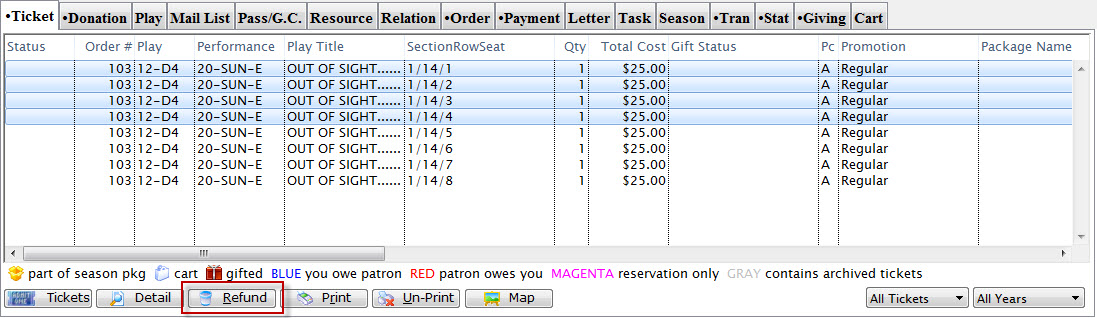
- Click the Refund
 button.
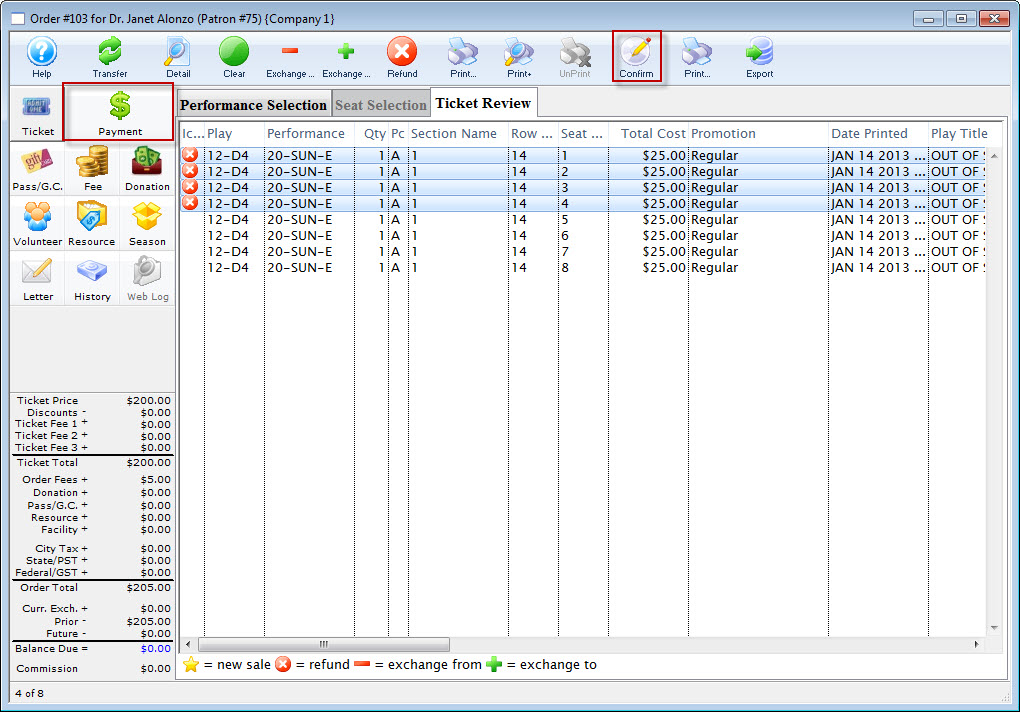
The Ticket Refund window opens, displaying the full refund amount. The Donation Button can be used to quickly turn the amount of the refunded tickets into a donation. Click here for more information on creating a donation from a ticket refund.
Click here to see the Refund to a Donation Screencast.
 - Click the Confirm
 button.
- Click the Payment
 button.
The Payment window opens.
- Select the Refund Method.
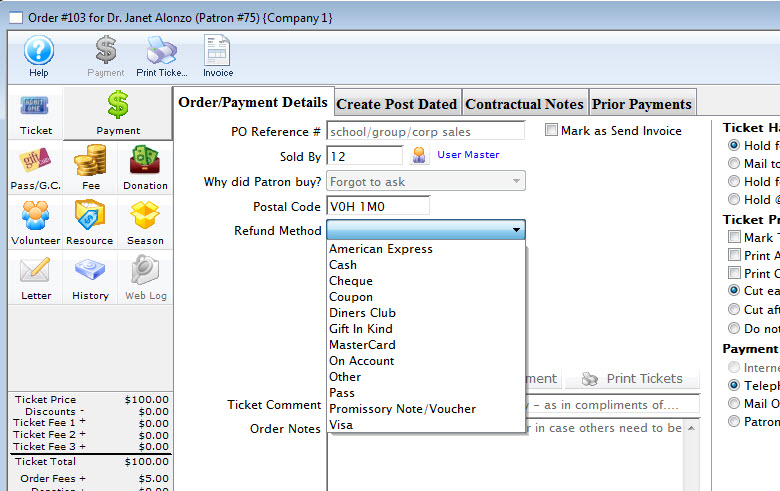
- Enter any relevant information.
Order comments should be entered when refunds are issued indicating the reason for the refund and the supervisor who authorized the refund. This information will assist in reviewing the daily activity to insure the refund was processed correctly and was authorized.

To not refund the order or exchange fee remove them in the fees window.

- Click the Accept
 button.
Theatre Manager will return the ticket for resale and return the user to the Patron Household Window.
| The following quick reference information is available for Exchanging or Refunding Tickets |
Reference Guide (pdf) |
Cheatsheet (pdf) |
Flash ScreenCast |
MP4 ScreenCast |


Refunding Tickets to a Gift Certificate
To refund a ticket to a gift certificate, you perform the following steps:
- Find the patron wanting to refund tickets.
Click here to learn how to find patrons.
- Int the Patron record, highlight the tickets to be refunded.
- Click the Refund button.
The Ticket Refund window opens displaying the full refund amount. You can use the Donation button can be used to quickly turn the amount of the refunded tickets into a donation.
Click here for a detailed description of this window and it's functions.
- Click the Confirm button.
- Click the Membership / Pass / GC
 button.
The Membership window opens.
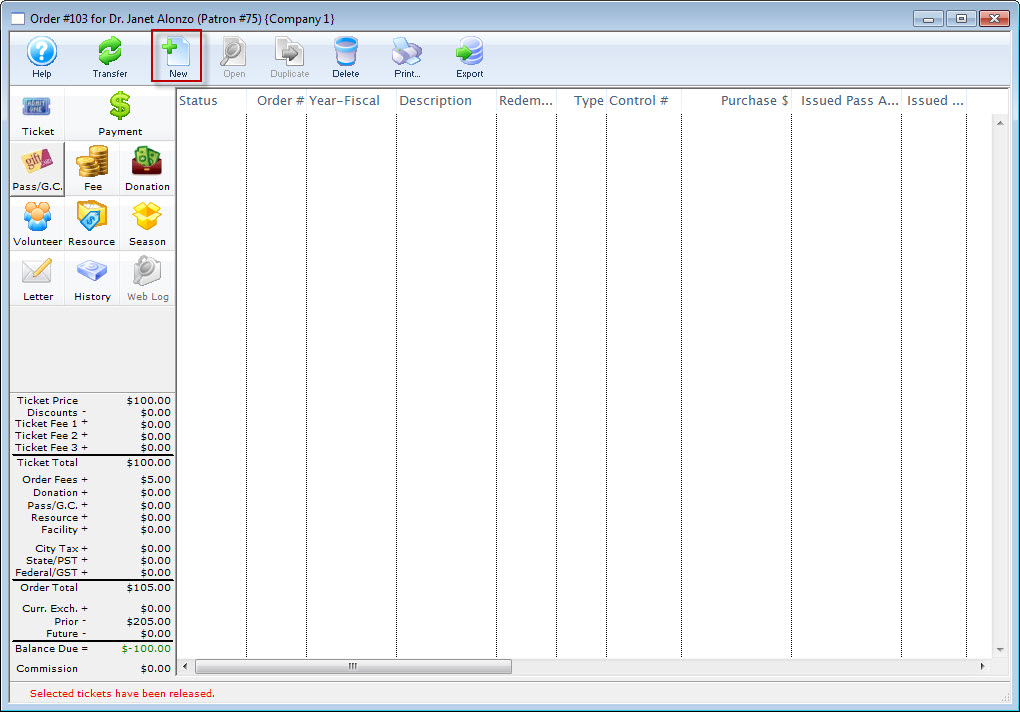
- Click the New
 button.
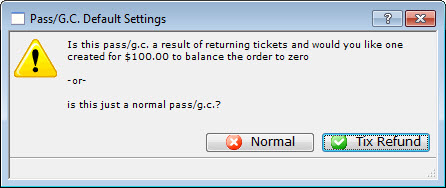
A confirmation dialog opens, asking "Is this pass/g.c. a result of returning tickets and would you like one created for $100 to balance the order to zero, or is this just a normal pass/g.c?"
- Click the Tix Refund
 button.
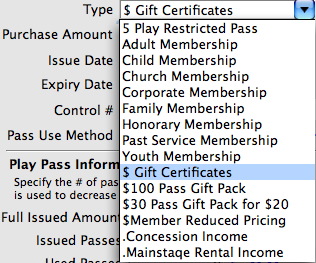
The Pass G.C. Detail window opens. Click here, for more information on this window.
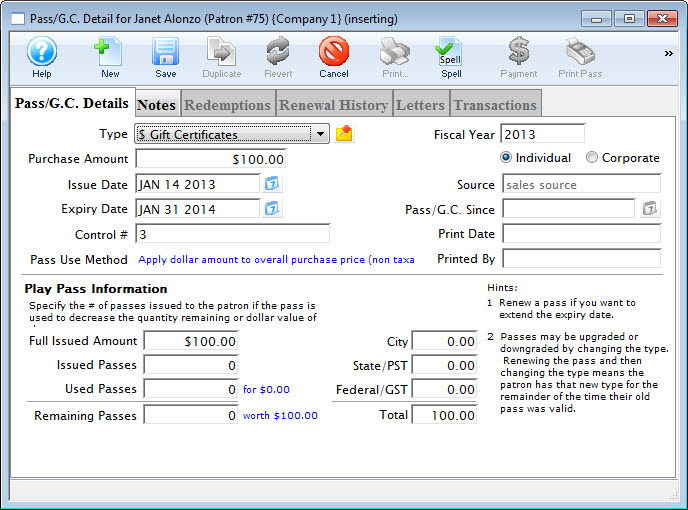
- Enter the amount of the refund the patron wishes to be used for gift certificates.
- Enter any other information as needed.
- When complete, click the Save
 button.
You are returned to the Membership window and the certificate amount is subtracted from the refund total.
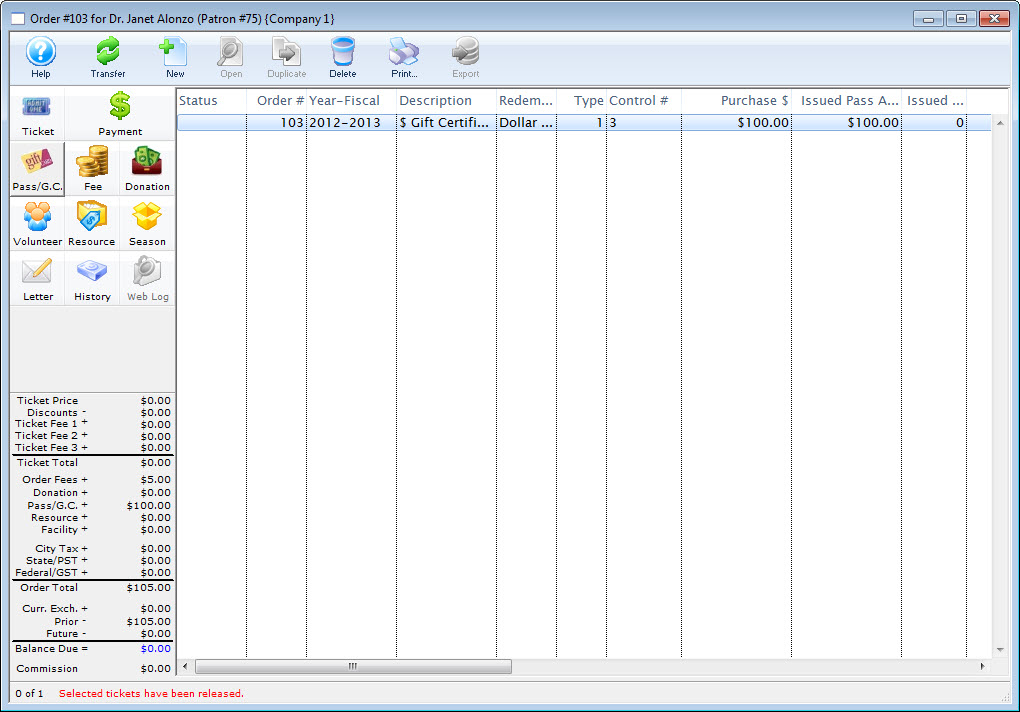
The tickets are returned for resale and the gift certificate is added to the Patron's account.
Refunding a Sale From the Ticket List Window
To refund a sale from the Ticket List window, you perform the following steps:
- Open the Ticket List Window.
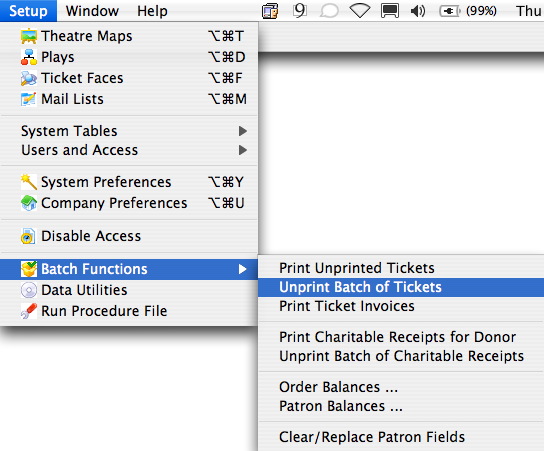
Choose Setup >> Batch Functions >> Unprint a batch of tickets.
The Ticket List Window opens.
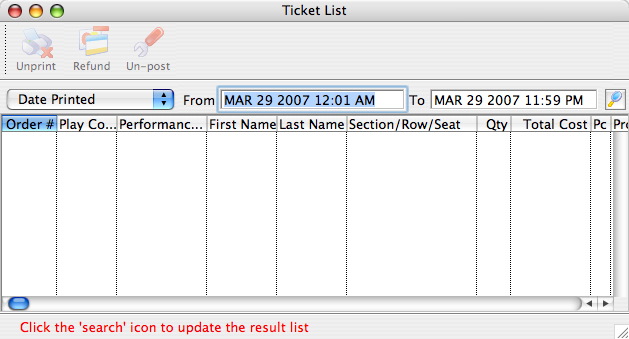
- Select a search range and click the Search
 button.
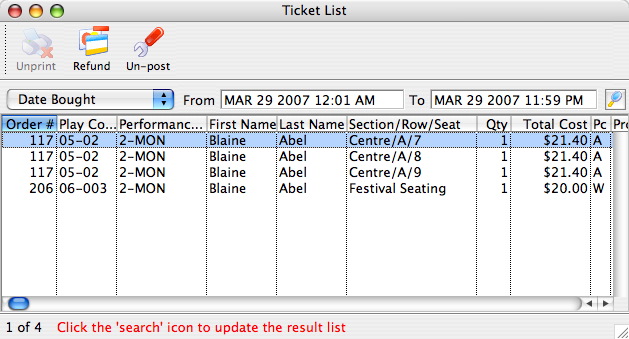
- Select the tickets the patron wishes to refund.
Do this by single clicking the tickets.

- Click the Refund
 button.
The Ticket Refund window opens displaying the full refund amount.
You can use the Donation Button to quickly turn the amount of the refunded tickets into a donation. Click here for more information on creating a donation from a ticket refund.
Click here for a detailed description of this window and it's functions.
- Select the Refund Method.
- Enter any relevant information
Order comments should be entered when refunds are issued explaining the reason for the refund and the supervisor who authorized the refund.
This information assists in reviewing the daily activity and insures the refund was processed correctly and was authorized.

To refund the order or exchange fee, you will need to remove them in the fees window.
- Theatre Manager will return the ticket for resale and return the user to the Patron Window.
Refunding from the Play and Dates Window
Note: You can also do mass refunds from Setup->Batch Functions->UnPrint or Refund a Batch of tickets. The advantage on the Unprint Batch of Tickets window is that you can select tickets by patron, event, and more.
 |
Before you do any refunding, please make sure to set up gift certificates and donation campaigns to track refunds appropriately if you are not giving money back.
Do not leave the order on account. |
|
Theatre Manager will generate a refund using the same payment method that was used for the original order. If an order used multiple payment methods, and one of those methods was a previously deposited credit card, Theatre Manager will refund the entire amount to the same credit card. A refund will include
Theatre Manager will NOT refund any Order Fees that are part of the order since they could be for a myriad of reasons that are not related to the tickets being refunded. |
|
You can use this feature iteratively. Examples:
|
|
You may need to contact your merchant provider to determine if you:
|
|
NOTE: IF YOU ARE PCI SCHEDULE C OR SCHEDULE D: POST DATED/RECURRING PAYMENTS ONLY AND HAVE NOT TURNED ON MERCHANT PROFILES, CREDIT CARDS ARE NOT STORED IN YOUR DATABASE.
An attempt will be made to link the card to a prior authorization to refund without needing the credit card. If that fails, you will need to use a refund method like Gift Certificate or Donation in step 3 below - any refund method other than Credit Card |
To refund tickets through the Attendance tab of the Event setup, you perform the following steps:
- Open the Plays and Dates window.
- Click the
 Tab.
Tab. - Click on the desired performance on the left side.
This will show a complete list of all patrons who bought tickets to the performance.
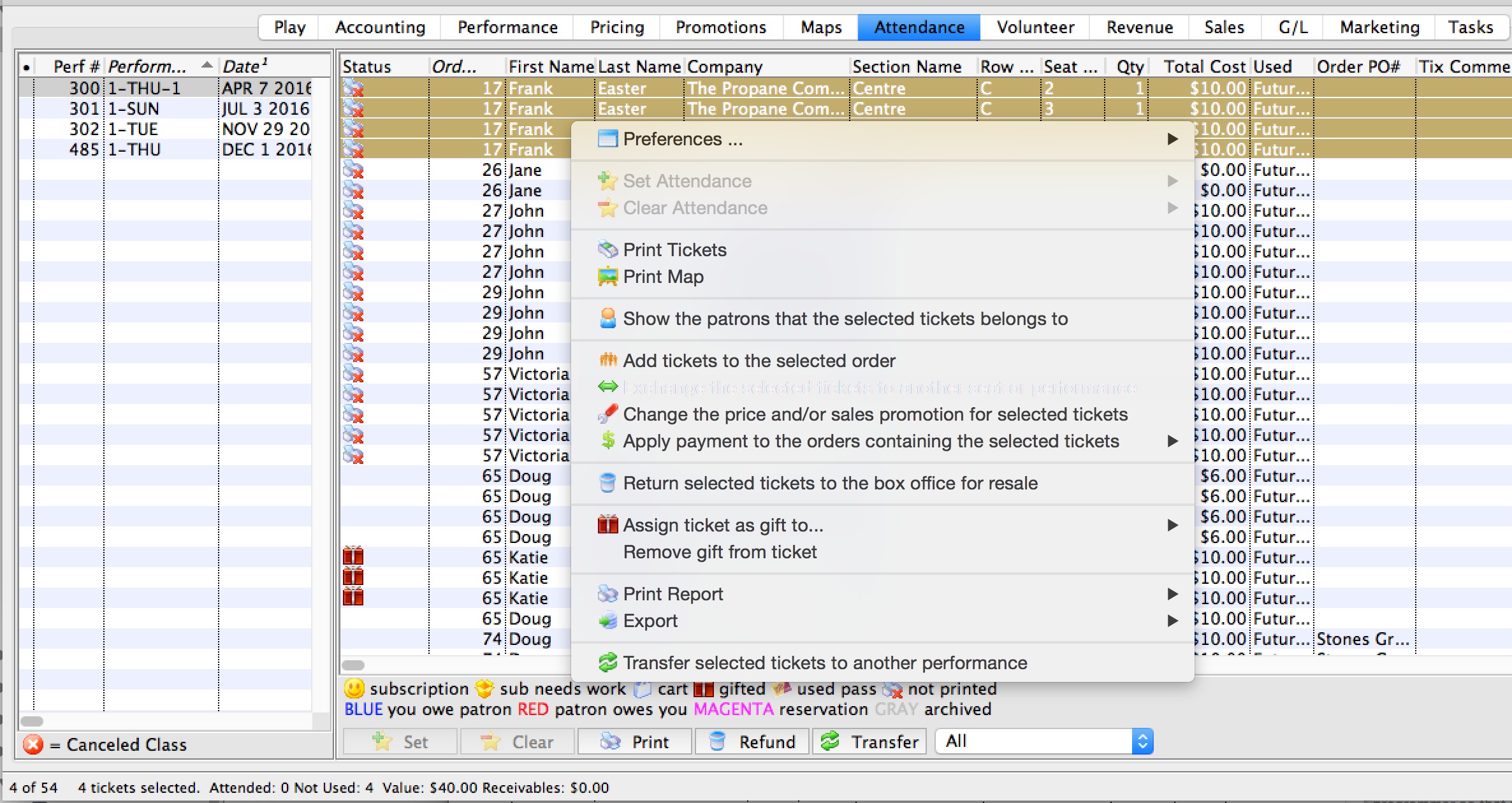
- Select the patron's ticket(s) to refund.
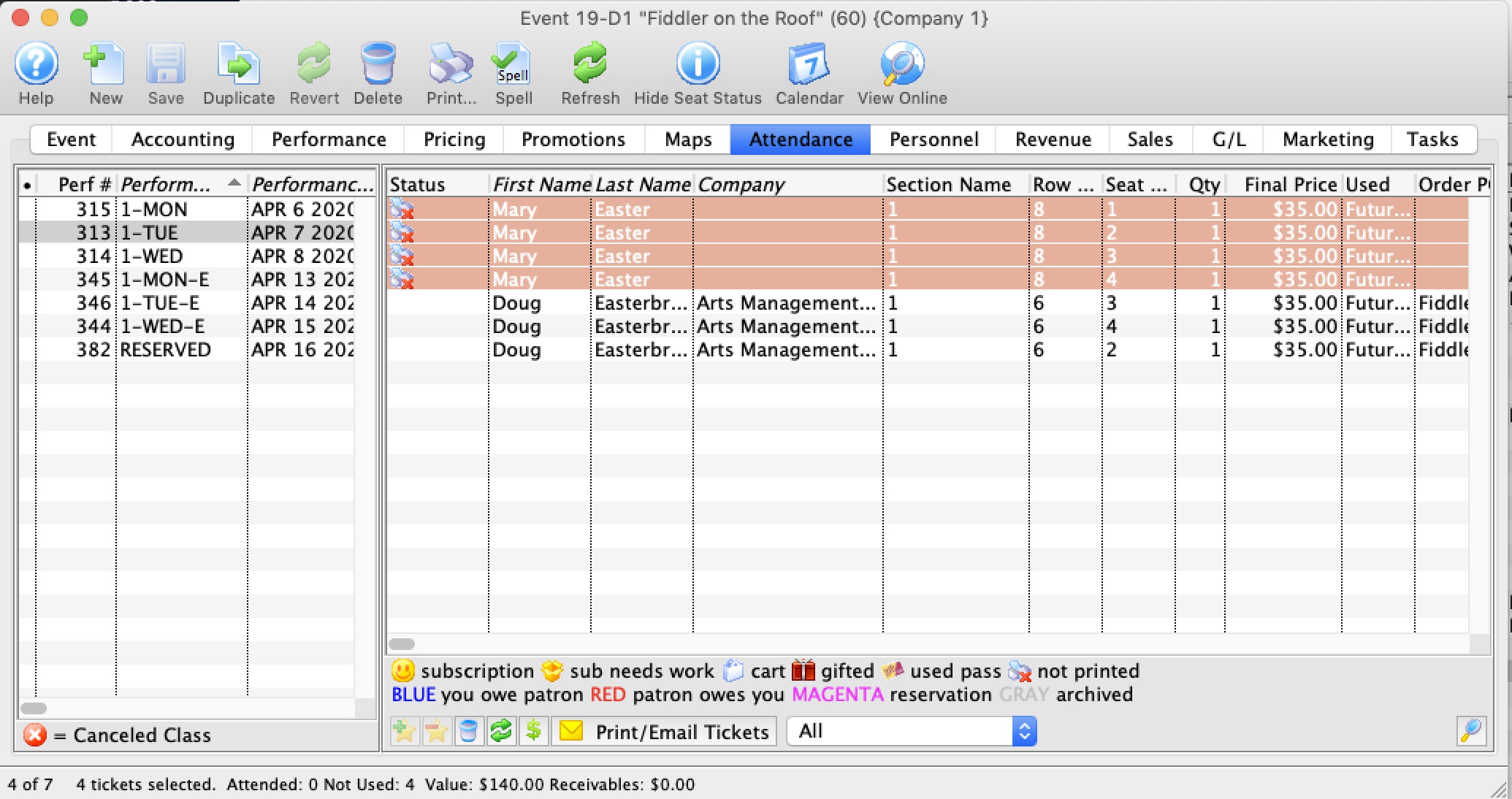
- Click the button at the bottom of the window.
The Refund Tickets Wizard opens.
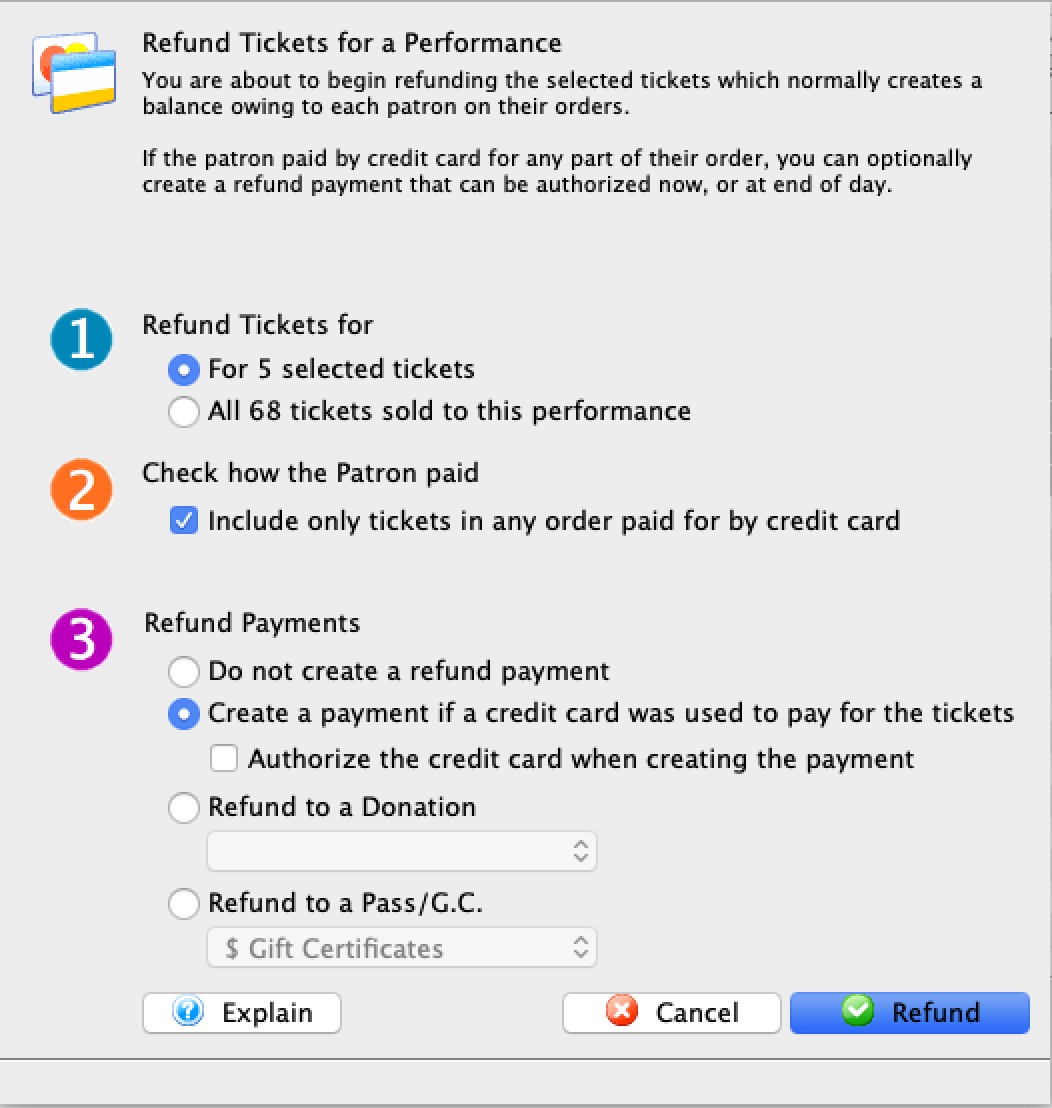
- The selected tickets, or
- All tickets for this performance
- Refund to Gift Certificate
- Refund to Donation
- Refund using Check as need be.
- Do not create a refund payment - in which case all refunds will be on account and you will need to refund patrons manually later - or -
- Create a refund only if a credit card was used for the original purchase. This will refund to the same credit card as long as there is a credit card on file or you have a merchant profile set up for this patron. Anybody with only a shredded card on file will have a payment created, and linked to a prior payment. Should authorization fail, it will need to be addressed later. The partial card number will help you when talking to the patron.
We recommend AGAINST using the authorizing at time of refund option (refer to refund processing rules) and delay it to end of day. Refunding to a credit card biases towards doing linked refunds if it can.
- Refund to a Donation lets you specify a donation campaign.
Rules:
- The value of the donation to the campaign will be the balance on the order after refunding the tickets. .
- One donation is made per order, even if the patron bought many tickets to the performance in different orders. Theatre Manager will create a note in the Notes Tab of the Donation containing the Event and Seating details for those tickets refunded. Each donation will have a record of the original tickets purchased that made up this donation.
- The campaign must be set up to allow refunds to tickets to appear in the selection. If you don't have a campaign set for refund to tickets, this option will be disabled.
- If the ticket was Gifted to another patron, the donation will be created on the ORIGINAL ticket buyer's patron record.
- The donation giving level range can have any number of ranges which must encompass all values of anticipated refunds from 0.01 through 99999999.99 (otherwise, the donation will not appear in a donation list until the giving levels are fixed)
- Refund to a Pass or Gift Certificate lets you specify a Pass/Gift Certificate.
Rules:
- If using:
- Dollar Value Gift Certificates: the gift certificate amount will be the dollar value of the balance on the order after refunding the tickets. Thus the balance goes to zero and the gift certificate is automatically the same as the balance
- Dollar Average/Admission: the pass will be set up to allow the same number of admissions as the tickets refunded. If you refund 2 tickets totaling $80, then the patron will have a pass for 2 tickets valued at $80 for use in the future. Since prices of tickets go up, it is less likely that you would use this option.
- One refund to the pass is made per order, even if the patron bought many tickets to the performance in different orders. Theatre Manager will create a note in the Notes tab of the Pass/Gift Certificate containing the Event and Seating details for those tickets refunded. Each Pass/Gift Certificate will have a record of the original tickets purchased that made up this Pass/Gift Certificate.
- The pass/gc must be set up to allow refunds to tickets to appear in the selection. If you don't have a pass/GC set for refund to tickets, this option will be disabled.
- If the ticket was Gifted to another patron, then the Pass/Gift Certificate will be created on the ORIGINAL ticket buyer's patron record
- If using:
- Click
 to continue with the refund.
 |
Options to refund either
|
||
 |
If you select this, Theatre Manager will only refund tickets in an order where that order contains at least one credit card to pay for it. If you do de-select this option, then all tickets will be refunded - you may have to apply a payment refund on a per patron basis later, depending on what you are doing to refund payments.
Note: if you refund tickets with card data first, the others will remain in the list. You can then select and refund some of the remaining tickets using another other payment method such as: |
||
 |
This further refines how you want Theatre Manager to handle the refund payment options, including:
|
The selected ticket will be refunded and returned for sale if the performance is in the future.