The Finished Report Window

Parts of the Finished Reports Window
 |
A small drop down menu opens showing all Custom Categories to which the report can be added. Once a category is selected, the report will appear in that category for easy access alter. Click here for more information on custom categories. |
 |
Opens the operating systems print dialog and prints the report. |
 |
Opens the operating systems print dialog and prints the current page of the report. |
 |
Prints the entire report as a PDF. The Save As dialog for the operating system will open allowing the report to be saved as a file. Click here for more information on the PDF Generator. |
 |
Allows you to email this report to one or more patrons who have email addresses in Theatre Manager. Any emailed report will be recorded into the corresponding patrons' letter history tab on their patron record. |
 |
You can Export some reports in Excel format or a Tab-delimited text file. |
 |
Show or hide the page list thumbwheels on the left side of the report. |
 |
Saves the current report. This feature is not currently implemented. |
 |
Re-runs the report to retrieve the latest data from the database.
There is a field on the upper right of the report window showing when the data was last retrieved for the report. The text is normally green. If it is red, then the data is from a report containing data retrieved more than 15 minutes prior. |
 |
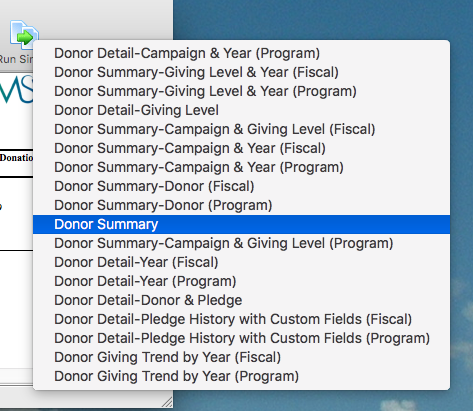
Clicking this will open small drop down menu listing one or more other reports that use similar data to the report currently shown. This allows the user to use the same criteria but in a different format. |
Emailing Any Report
Click the Email
 button at the top of the window.
The Email Report To Patron window opens.
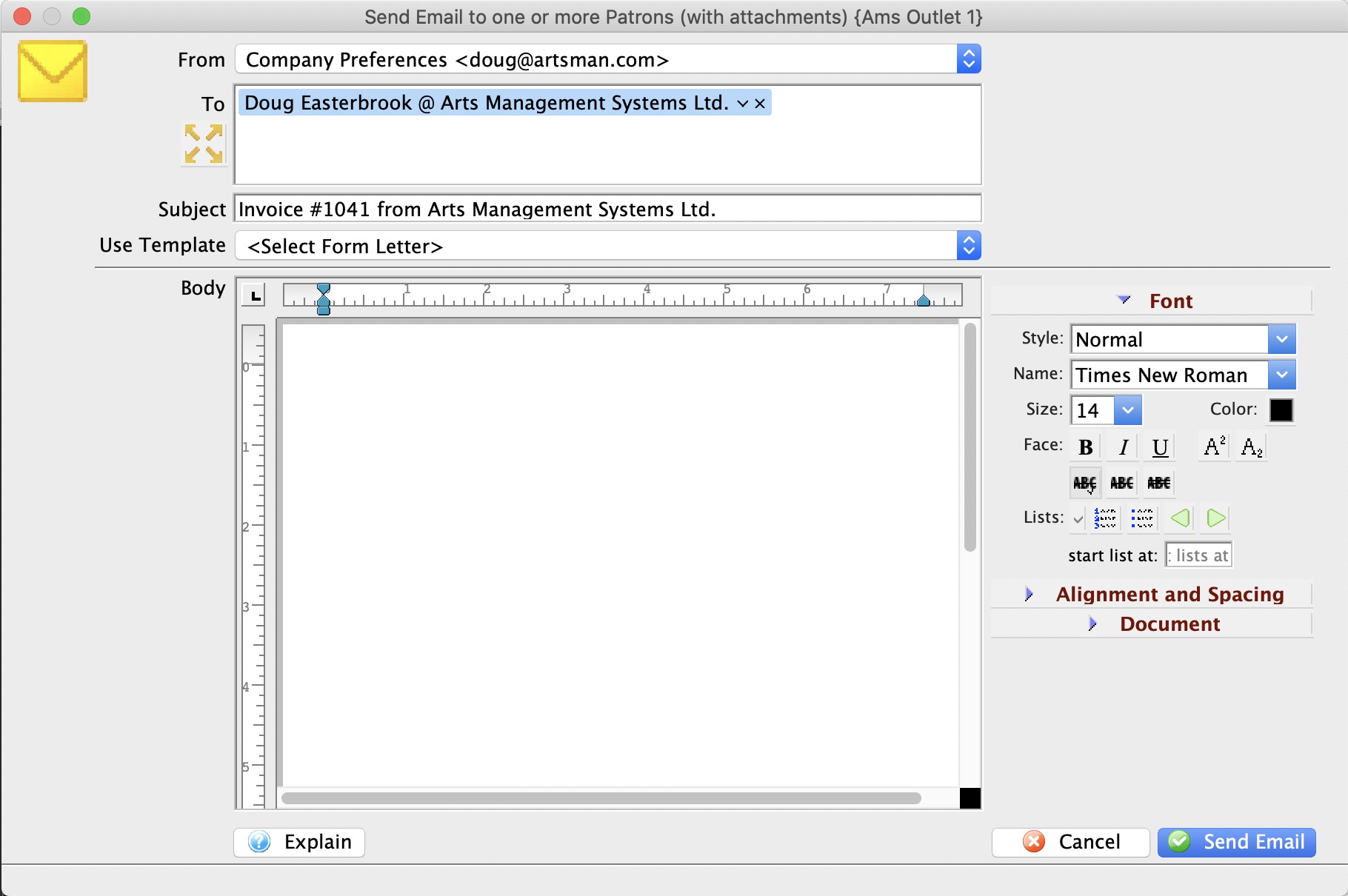
Edit the Subject as desired.
Choose the send From email address.
Choices include either the Web Server email address (the web listener) as set up in Setup >> Company Preferences in the Company tab, or the current user's email address as set in Employee Preferences >> Email Tab.
If you choose the Web Server email address, the email will be sent by the Web Listener. If you choose the employee's email address, the email will be sent right away from the workstation.Enter any desired text in the Body field below the subject.
You can type something or pick from the template letters set up as a Cover Letter
The Report will be sent to the primary email address pulled from the patrons record. You can choose other recipients by:
- Typing part of the patron name or company
- Typing part of an email list name
Click the Send Email
 button in the lower right corner of the window.
Using Search in Reports
If there are multiple text matches, you can use the next and previous buttons to find the next and previous match.
If you would like, you can do a Case Sensitive match where text in the document must match the case of the search words.

Report Context Menu
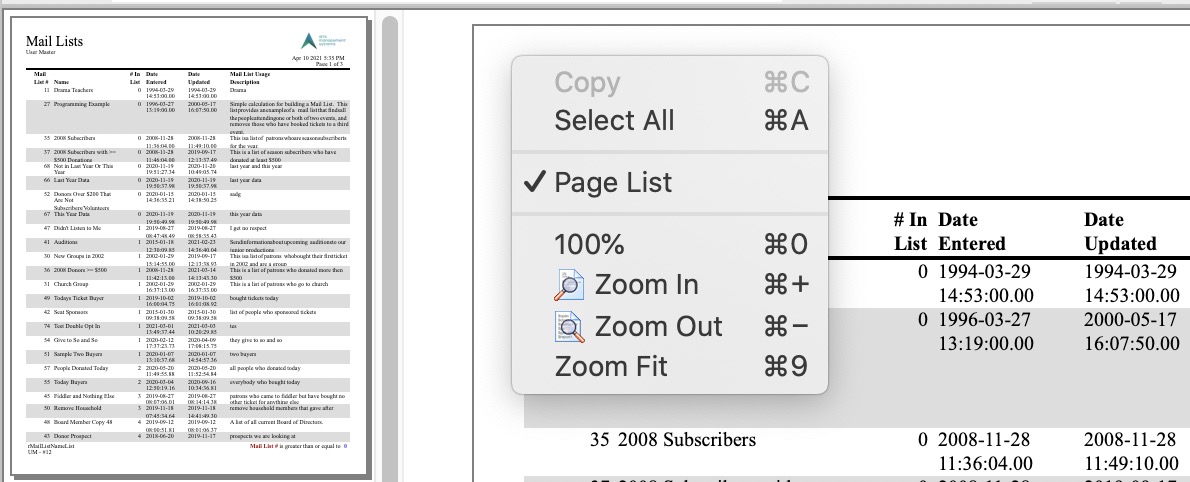 You can right click on a report to:
- Select all data in the report. You can also drag select the areas you are interested in
- Copy the a selection of text that you can then paste into another application like Word or Excel
- Show the Page List on the left side of the report as thumb nails
- Zoom to:
- 100% - show the page full size
- Zoom in - magnify the report a little. You can repeat this to keep zooming in
- Zoom Out - make the text smaller to see more of the report area
- Zoom Fit - fit a single page of the report the available report window area. If you resize the report area, the single page will also shrink or expand.
Run Again to retrieve latest data
If you close the report window and then run the same report with the same criteria, the system may show the data from the prior time you ran this report and the timestamp will not change.
If you absolutely want the latest data for this report using the current criteria, you can click the Run Again button to refresh the data. Sometimes this can be useful if you are watching an on-sale and want the system to get the latest.
There is a field on the upper right of the report window showing when the data was last retrieved for the report. The text is normally green. If it is red, then the data is from a report containing data retrieved more than 15 minutes prior.

Run Similar Button in Reports
At the top of each completed Report is the Run Similar button. This button provides a drop down of report that can be used to create similar reports to the original, presenting the information in a different format.
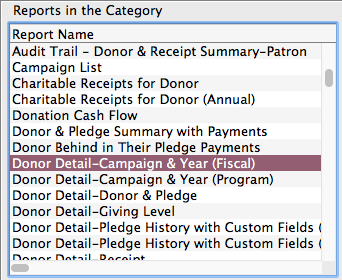
- Select the report that sound closest to the report you are looking for.
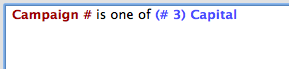
- Run the report with your desired criteria.
- Click the Run Similar button at the top of the report window.

This will provide a list of reports with the same related data files as your original selection.
- Select one of the report options provided.
- Theatre Manager will open a new Parameters window and automatically load the criteria used for the original report.
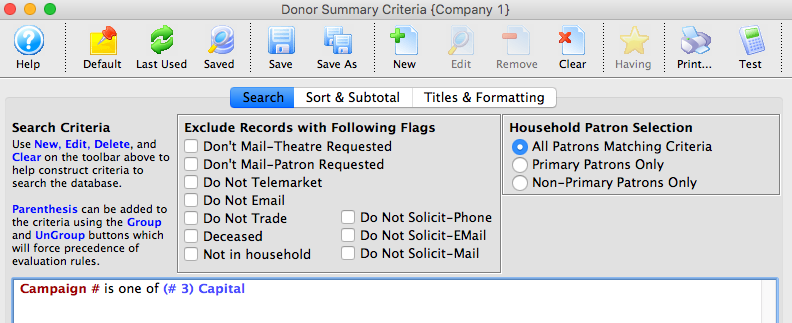
- Alter the criteria as needed and generate the selected report.