|
Quick reference information for Reports Criteria |
MP4 Video |
Criteria allow you to refine the information in a report - before generating the report. Criteria can be used to find specific information and using criteria speeds up the process of generating a report.
button on the main toolbar. The Reports window opens.
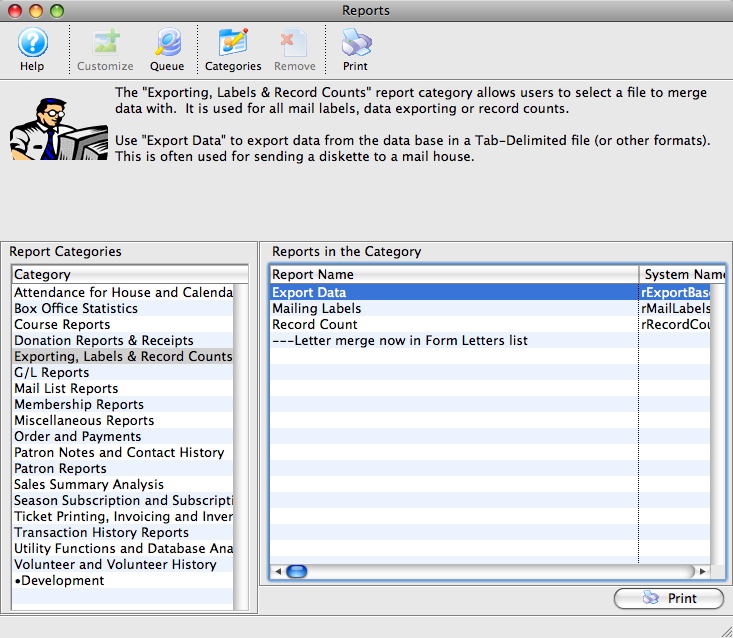
Click here for more information about the Reports window.
button.
For more information on the specific reports, click here for a list of available reports.
The Add Criteria window opens.
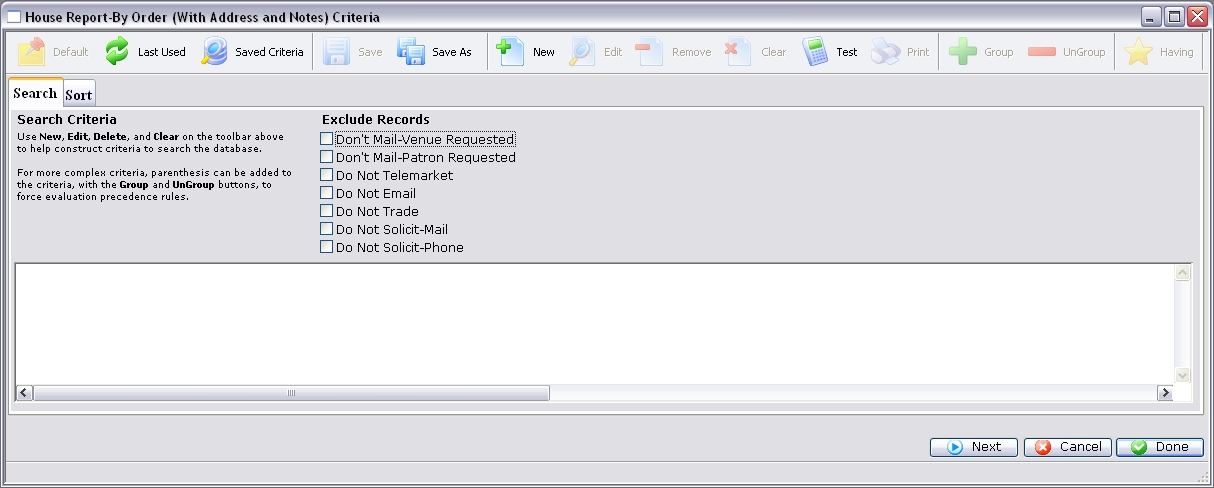
Click here for more information on the Criteria window.
button to add the first criteria.
The Add/Edit Parameters window opens.
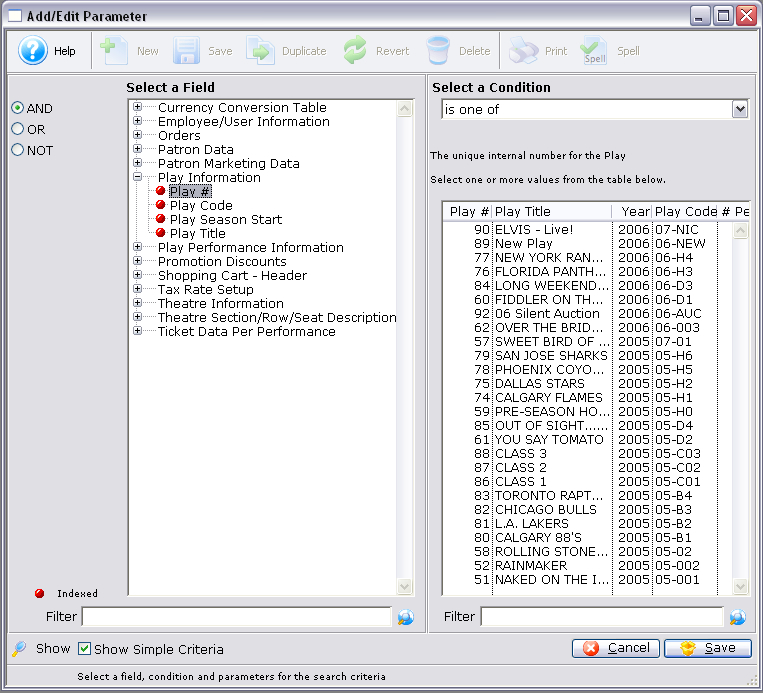
Click here for more information on the Add/Edit Parameter window.
Operators are on the left hand side of the window. They are "AND, OR, NOT."
AND |
This criteria and all previous criteria will be used in the search. |
OR |
This criteria or all previous criteria should be used in the search. |
NOT |
All previous criteria but not this criteria will be used in the search. |
Clicking on the plus symbol (+) next to a data category expands it to show a list of fields.
choose indexed fields when possible as Reports generated with indexed fields generate much faster.
Conditions determine how the parameters react.
Click here for more information on conditions.
Depending on the data field and condition, the parameters may be a single number, a range of numbers, or a list of items.
If a list of items is shown, multiple items can be selected by using the OPTION key (Mac) or the CTRL key (Windows).
button.
The Add/Continue
button may also be used to add this criteria, and select additional criteria without leaving the window.
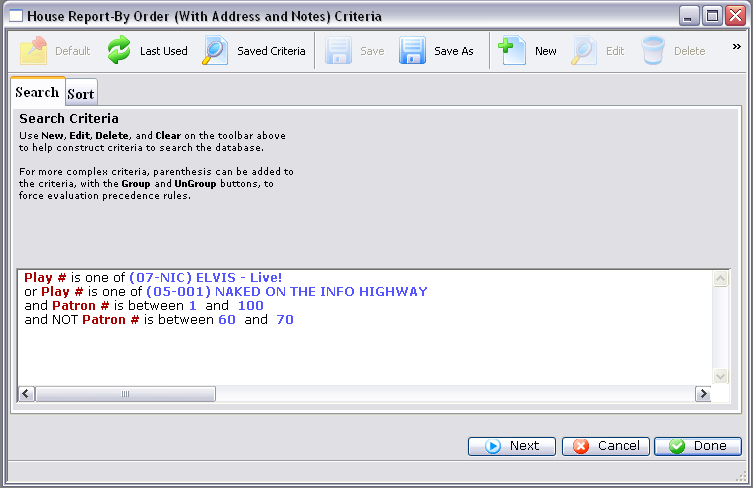
tab, if necessary,
and adjust.
button to generate the report.
Click here for more information on the Finished Reports window.

|
|
If available, uses the default search criteria for this report. |
|
|
If this report has previously been run, this button will add the previous criteria. |
|
|
Opens a list of saved criteria for this report. |
|
|
Saves the current criteria to be used later. |
|
|
Saves the current criteria to be used later and opens a dialog to name this criteria. |
|
|
The Donation Receipt tab is where the search criteria is placed that will be used in generating the report. |
The Sort tab allows adjustment of the sort order of the columns found in the report. Click here for more information on the Sort tab. |
The Titles tab allows you to give the report a name that is meaningful to your requirements. Click here for more information on the Sort tab. |
Next Receipt # |
The next number that will be used when printing a receipt. |
Select Donation For |
Allows choosing a single campaign or all campaigns that have unprinted receipts. |
Last Name Between |
Allows for the selection of a range of patrons based on last name. |
Calendar Year |
Allows for only selecting all receipts within a calendar year. If left blank, all unprinted receipts for the current calendar year will be printed. |
Print on Receipt |
|
Receipt # On Forms |
When checked, the receipts will print with a number on them. Turn this off if pre-printed receipts are being used. |
Regular Name With Company |
When checked, the receipts will include the name of the patron and the company. |
Campaign: ' Prompt |
Determines if the Campaign:' promp appears in front of the Donation Campaign on the receipt. |
# of Copies |
The number of copies of each receipt to be printed. |
Comments for Receipts |
Allows for the comment at the bottom of the receipts to be altered. This comment will print on all receipts. |
|
|
Moves to the Sort tab. |
|
|
Cancels that adding of criteria and returns the user to the Report window. |
|
|
Completes the addition of criteria and the sorting of data, and begins to print the receipts. If pre-printed forms are being used, make sure they are loaded in the printer prior to clicking this button. |

|
|
If available, uses the default search criteria for this report. |
|
|
If this report has previously been run, this button will add the previous criteria. |
|
|
Opens a list of saved criteria for this report. |
|
|
Saves the current criteria to be used later. |
|
|
Saves the current criteria to be used later and opens a dialog to name this criteria. |
Donation Total Options |
|
Show Donation Total Line |
When checked, an additional line for donation totals will be added to the invoice. |
|
|
Returns to the previous tab. |
|
|
Moves to the next tab. |
|
|
Cancels that adding of criteria and returns the user to the Report window. |
|
|
Completes the addition of criteria and the sorting of data, and begins to generate the report. Click here for more information on the Finished Report window. |

|
|
If available, uses the default search criteria for this report. |
|
|
If this report has previously been run, this button will add the previous criteria. |
|
|
Opens a list of saved criteria for this report. |
|
|
Saves the current criteria to be used later. |
|
|
Saves the current criteria to be used later and opens a dialog to name this criteria. |
Create Donor Summary |
When checked, all donations by a patron in the report will be combined and then the patron's giving level will be adjusted based on the total amount of donations. |
Effective Date |
All donations prior to this date will be summarized in the totals. |
Build Summary Only |
This will create a summary based on the donations in the report. |
Remove Summary Then Rebuild It |
This will remove any existing summaries, and then rebuild the summary for each patron. |
|
|
Moves to the previous tab. |
|
|
Moves to the next tab. |
|
|
Cancels that adding of criteria and returns the user to the Report window. |
|
|
Completes the addition of criteria and the sorting of data, and begins to generate the report. Click here for more information on the Finished Report window. |

|
|
If available, uses the default search criteria for this report. |
|
|
If this report has previously been run, this button will add the previous criteria. |
|
|
Opens a list of saved criteria for this report. |
|
|
Saves the current criteria to be used later. |
|
|
Saves the current criteria to be used later and opens a dialog to name this criteria. |
Available Export Fields |
A list of fields available to export by. |
|
|
Adds the currently selected field to the export field list. |
|
|
Removes the currently selected field from the export field list. |
Export Format |
A drop down menu allowing for adjustments to the format in which the data is exported. |
Column Headers |
|
Database Field Name |
When selected, the data column headers will be the name of the database field. |
Regular Name |
When selected, the data column headers will be in the standard name of the field. |
|
|
Returns to the Sort tab. |
|
|
Cancels that adding of criteria and returns the user to the Report window. |
|
|
Completes the addition of criteria and the exporting of data, and opens the operating system's save dialog. Click here for more information on Exporting Data from the Report function. |

|
|
If available, uses the default search criteria for this report. |
|
|
If this report has previously been run, this button will add the previous criteria. |
|
|
Opens a list of saved criteria for this report. |
|
|
Saves the current criteria to be used later. |
|
|
Saves the current criteria to be used later and opens a dialog to name this criteria. |
Address Label |
Strict Address Compliance |
Standardized address information enhances the processing and delivery of mail. |
Regular Name |
When checked, the regular name of the patron is used on the label. |
Formal Name |
When checked, the formal name of the patron is used on the label. |
Company Name |
When checked, the company name of the patron is included on the address label. |
Title |
When checked, the title of the patron is included on the address label. |
Address Label Comment |
When checked, the text entry box becomes active, allowing for an additional comment to be added to the address label. |
Invoice Title & Style |
|
Invoice |
When selected, the invoice style will be used for generating the report. |
Statement |
When selected, the statement style will be used for generating the report. |
Payment Reminder |
When selected, the payment reminder style will be used for generating the report. |
Confirmation |
When selected, the confirmation style will be used for generating the report. |
Contract |
When selected, the contract style will be used for generating the report. |
|
|
Returns to the previous tab. |
|
|
Moves to the next tab. |
|
|
Cancels that adding of criteria and returns the user to the Report window. |
|
|
Completes the addition of criteria and the sorting of data, and begins to generate the report. Click here for more information on the Finished Report window. |

|
|
If available, uses the default search criteria for this report. |
|
|
If this report has previously been run, this button will add the previous criteria. |
|
|
Opens a list of saved criteria for this report. |
|
|
Saves the current criteria to be used later. |
|
|
Saves the current criteria to be used later and opens a dialog to name this criteria. |
Fee Options |
|
Show Fee Detail Line |
When checked, the fees for the invoice will be listed in detail. |
Show Fee Total Line |
When checked, the fees for the invoice will be summarized into a single line. |
Tax Options |
|
Show Tax Detail Line |
When checked, the taxes for the invoice will be listed in detail. |
Show Tax Total Line |
When checked, the taxes for the invoice will be summarized into a single line. |
|
|
Returns to the previous tab. |
|
|
Moves to the next tab. |
|
|
Cancels that adding of criteria and returns the user to the Report window. |
|
|
Completes the addition of criteria and the sorting of data, and begins to generate the report. Click here for more information on the Finished Report window. |

|
|
If available, uses the default search criteria for this report. |
|
|
If this report has previously been run, this button will add the previous criteria. |
|
|
Opens a list of saved criteria for this report. |
|
|
Saves the current criteria to be used later. |
|
|
Saves the current criteria to be used later and opens a dialog to name this criteria. |
Tear Off Section |
Adjusts spacing so the footer can be torn off the invoice. |
Performance Start Warning Time |
Prints a time on the invoice to alert the patron to arrive at prior to the performance. When set to 0, this field will not print. |
Additional Comments |
The drop down menu is used to select any additional comments that should be included on the invoice. Comments can be added and altered under the Setup >> System Tables >> Invoice Comments menu. Click here for more information about Invoice Comments. |
|
|
Returns to the previous tab. |
|
|
Moves to the next tab. |
|
|
Cancels that adding of criteria and returns the user to the Report window. |
|
|
Completes the addition of criteria and the sorting of data, and begins to generate the report. Click here for more information on the Finished Report window. |

|
|
If available, uses the default search criteria for this report. |
|
|
If this report has previously been run, this button will add the previous criteria. |
|
|
Opens a list of saved criteria for this report. |
|
|
Saves the current criteria to be used later. |
|
|
Saves the current criteria to be used later and opens a dialog to name this criteria. |
Page Header Titles |
|
| Use default report title | If enabled, the default report tile will print. If disabled, you can specify a specific title for the report. |
| Title | Enter the title you want the report to have. |
| Display employee full name | The name of the employee logged into Theatre Manager will print on the report. |
| Description | You can enter a description of the report and/or the criteria you have selected. |
Formatting |
|
Subtotal Indent |
When checked, the indent of the subtotal will be adjusted. Adjust the indent by changing the number in the text field. |
Column Gap |
When checked, the gap between columns will be adjusted. Adjust the actual gap by changing the number in the text field. |
Copy and Paste Compatibility |
When checked, additional adjustments to the spacing will be done to allow for easier copying and pasting of the report into another document. |
No Subtotal Headers |
When checked, the page headers will be adjusted to only fit on one line. |
Force Portrait |
When checked, the report will print in portrait format. |
Force Landscape |
When checked, the report will print in landscape format. |
|
|
Returns to the previous tab. |
|
|
Cancels that adding of criteria and returns the user to the Report window. |
|
|
Completes the addition of criteria and the sorting of data, and begins to generate the report. Click here for more information on the Finished Report window. |

|
|
If available, uses the default search criteria for this report. |
|
|
If this report has previously been run, this button will add the previous criteria. |
|
|
Opens a list of saved criteria for this report. |
|
|
Saves the current criteria to be used later. |
|
|
Saves the current criteria to be used later and opens a dialog to name this criteria. |
Only Display Hold Codes |
|
All |
When selected all possible hold codes will be displayed in the report. |
Used in the Performance |
When selected only hold codes that have been used in the performance will be displayed in the report. |
Entered Here |
When selected the text field becomes active allowing the user to specify specific hold codes to be looked for. |
|
|
Returns to the previous tab. |
|
|
Moves to the next tab. |
|
|
Cancels that adding of criteria and returns the user to the Report window. |
|
|
Completes the addition of criteria and the sorting of data, and begins to generate the report. Click here for more information on the Finished Report window. |

|
|
If available, uses the default search criteria for this report. |
|
|
If this report has previously been run, this button will add the previous criteria. |
|
|
Opens a list of saved criteria for this report. |
|
|
Saves the current criteria to be used later. |
|
|
Saves the current criteria to be used later and opens a dialog to name this criteria. |
Donation Giving Level Matrix |
|
| Matching Gifts | |
Checkbox - Add matching gift amount to patron's recognition when calculating their giving level |
If the patron is part of a matching gift program, then the matching gift will be included in the totals when this box is checked. |
| Soft Credits | |
Checkbox - Add Soft Credits to patron's recognition when calculating their giving level |
If the patrons has soft credits in the donor history, these will be added to the totals then this box is checked. |
| Summarize | Select one of: |
Each donation is shown individually within its own unique giving level matrix |
Sets all donations that are in separate giving level matrices to be listed individually when selected. |
Combine each donation into a single giving level matrix based on sort name |
If a patron has donations in multiple giving level matrices, then all donations that have the same sort name attached will be combined into a single matrix of the user's choice. This will remove double-entered patrons if the donations contain the same sort name. |
Combine each donation into a single giving level matrix based on program name |
If a patron has donations in multiple giving level matrices, then all donations that have the same program name attached will be combined into a single matrix of the user's choice. This will remove double-entered patrons if the donations contain the same program name. |
Combine each donation into a single giving level matrix based on patron name |
If a patron has donations in multiple giving level matrices, then all donations that have the same patron name attached will be combined into a single matrix of the user's choice. This will remove double-entered patrons if the donations contain the same patron name. |
| Combine each donation into a single giving level matrix based on patron number | If a patron has donations in multiple giving level matrices, then all donations that have the same patron number attached will be combined into a single matrix of the user's choice. This will remove double-entered patrons if the donations contain the same patron number. |
| Combine each donation into a single giving level matrix based on household number | If many people in a household have given donations, then all donations that have the same household number will be combined
into a single matrix of the user's choice. This will aggregate donations for the same household. The name that is chosen when combining by household will follow these rules
|
| Giving Level Matrix | Currently there are three selections: |
|
|
Moves to the previous tab. |
|
|
Moves to the next tab. |
|
|
Cancels that adding of criteria and returns the user to the Report window. |
|
|
Completes the addition of criteria and the sorting of data, and begins to generate the report. Click here for more information on the Finished Report window. |

|
|
If available, uses the default search criteria for this report. |
|
|
If this report has previously been run, this button will add the previous criteria. |
|
|
Opens a list of saved criteria for this report. |
|
|
Saves the current criteria to be used later. |
|
|
Saves the current criteria to be used later and opens a dialog to name this criteria. |
Membership Total Options |
|
|
When checked, an additional line for membership totals will be added to the invoice. |
|
|
Returns to the previous tab. |
|
|
Moves to the next tab. |
|
|
Cancels that adding of criteria and returns the user to the Report window. |
|
|
Completes the addition of criteria and the sorting of data, and begins to generate the report. Click here for more information on the Finished Report window. |

|
|
If available, uses the default search criteria for this report. |
|
|
If this report has previously been run, this button will add the previous criteria. |
|
|
Opens a list of saved criteria for this report. |
|
|
Saves the current criteria to be used later. |
|
|
Saves the current criteria to be used later and opens a dialog to name this criteria. |
Include Fields In Totals |
|
Discounts |
When checked, this includes any discounts that were received with the sale. |
Ticket Fee 1 |
When checked, all monies that were associated with Ticket Fee 1 are included. |
Ticket Fee 2 |
When checked, all monies that were associated with Ticket Fee 2 are included. |
Ticket Fee 3 |
When checked, all monies that were associated with Ticket Fee 3 are included. |
City Tax |
When checked, all monies that were credited to City Tax are included. |
State/PST Tax |
When checked, all monies that were credited to State/Prov Tax are included. |
Federal/GST Tax |
When checked, all monies that were credited to Federal Tax are included. |
Date Range For The Current Period |
|
Start Date |
Set the date that the report should start on. |
End Date |
Set the date that the report should end on. |
|
|
Opens a mini-calendar for easier date selection. |
|
|
Returns to the previous tab. |
|
|
Moves to the next tab. |
|
|
Cancels that adding of criteria and returns the user to the Report window. |
|
|
Completes the addition of criteria and the sorting of data, and begins to generate the report. Click here for more information on the Finished Report window. |

|
|
If available, uses the default search criteria for this report. |
|
|
If this report has previously been run, this button will add the previous criteria. |
|
|
Opens a list of saved criteria for this report. |
|
|
Saves the current criteria to be used later. |
|
|
Saves the current criteria to be used later and opens a dialog to name this criteria. |
Payment Detail and Summary Options |
|
No Payment Detail |
When selected no payment information will be printed on the invoice. |
One Payment Per Line |
When selected all payments will be printed on the invoice with one membership per line. |
Summarize Payments on |
When selected the payments will be summarized based on the selected parameter below. |
Payment Method |
When selected the payments will be summarized based on the payment methods field. |
Payment Total Options |
|
Show Payment Total Line |
When checked, an additional line for payment totals will be added to the invoice. |
|
|
Returns to the previous tab. |
|
|
Moves to the next tab. |
|
|
Cancels that adding of criteria and returns the user to the Report window. |
|
|
Completes the addition of criteria and the sorting of data, and begins to generate the report. Click here for more information on the Finished Report window. |

|
|
If available, uses the default search criteria for this report. |
|
|
If this report has previously been run, this button will add the previous criteria. |
|
|
Opens a list of saved criteria for this report. |
|
|
Saves the current criteria to be used later. |
|
|
Saves the current criteria to be used later and opens a dialog to name this criteria. |
Only Display Price Codes |
|
Enabled for Performance |
When selected only the price codes that have been setup for the performance will be in the report. |
Actually used to sell tickets |
When selected only the price codes with tickets sold to them for the performance will be in the report. |
Entered Here |
When selected the text field becomes active allowing the user to specify specific price codes to be looked for. |
|
|
Returns to the previous tab. |
|
|
Moves to the next tab. |
|
|
Cancels that adding of criteria and returns the user to the Report window. |
|
|
Completes the addition of criteria and the sorting of data, and begins to generate the report. Click here for more information on the Finished Report window. |

|
|
If available, uses the default search criteria for this report. |
|
|
If this report has previously been run, this button will add the previous criteria. |
|
|
Opens a list of saved criteria for this report. |
|
|
Saves the current criteria to be used later. |
|
|
Saves the current criteria to be used later and opens a dialog to name this criteria. |
Do Not Include Invalid Promotions |
When selected, Theatre Manager will only calculate the promotions relative to the performance. |
Include Invalid Promotions |
When selected, Theatre Manager will calculate all promotions in the system. |
|
|
Returns to the previous tab. |
|
|
Moves to the next tab. |
|
|
Cancels that adding of criteria and returns the user to the Report window. |
|
|
Completes the addition of criteria and the sorting of data, and begins to generate the report. Click here for more information on the Finished Report window. |

If available, uses the default search criteria for this report. |
|
If this report has previously been run, this button will add the previous criteria. |
|
Opens a list of saved criteria for this report. |
|
Saves the current criteria to be used later. |
|
Saves the current criteria to be used later and opens a dialog to name this criteria. |
|
| Page Header Titles | |
| Use default report title | If enabled, the default report tile will print. If disabled, you can specify a specific title for the report. |
| Title | Enter the title you want the report to have. |
| Display employee full name | The name of the employee logged into Theatre Manager will print on the report. |
| Description | You can enter a description of the report and/or the criteria you have selected. |
|
|
Returns to the previous tab. |
|
|
Cancels that adding of criteria and returns the user to the Report window. |
|
|
Completes the addition of criteria and the sorting of data, and begins to generate the report. Click here for more information on the Finished Report window. |

|
|
If available, uses the default search criteria for this report. |
|
|
If this report has previously been run, this button will add the previous criteria. |
|
|
Opens a list of saved criteria for this report. |
|
|
Saves the current criteria to be used later. |
|
|
Saves the current criteria to be used later and opens a dialog to name this criteria. |
Project Detail Options |
|
No Project Shown |
When selected no project information will be printed on the invoice. |
Project Total Only |
When selected only the project toals will be printed on the invoice. |
Always Include Task Group Details |
When selected the task group details will be included. |
Also Include Task Details |
When selected the task details will be included. |
Project Total Options |
|
Include Total Line |
When checked, a subtoal line will be added to the invoice. |
Reporting Options |
Use Project Heirarchy |
When enabled, the invoice will print in the same order as the Project heirachy. |
By Date Only |
When enabled, the invoice will print by dates. |
| Show Comments | When checked, the comments will be printed.quote> |
|
|
Returns to the previous tab. |
|
|
Moves to the next tab. |
|
|
Cancels that adding of criteria and returns the user to the Report window. |
|
|
Completes the addition of criteria and the sorting of data, and begins to generate the report. Click here for more information on the Finished Report window. |

|
|
If available, uses the default search criteria for this report. |
|
|
If this report has previously been run, this button will add the previous criteria. |
|
|
Opens a list of saved criteria for this report. |
|
|
Saves the current criteria to be used later. |
|
|
Saves the current criteria to be used later and opens a dialog to name this criteria. |
Select Month Ending |
Set the date that Theatre Manager should use to run the report. Any data past this date will not be included. |
|
|
Returns to the previous tab. |
|
|
Moves to the next tab. |
|
|
Cancels that adding of criteria and returns the user to the Report window. |
|
|
Completes the addition of criteria and the sorting of data, and begins to generate the report. Click here for more information on the Finished Report window. |

If available, uses the default search criteria for this report. |
|
If this report has previously been run, this button will add the previous criteria. |
|
Opens a list of saved criteria for this report. |
|
Saves the current criteria to be used later. |
|
Saves the current criteria to be used later and opens a dialog to name this criteria. |
|
Time Range |
|
| Hour Start | Enter the Hour to Start the Report |
Hour Stop | Enter the Hour to Stop the Report |
Totals Outside Hour Range |
|
| Overall Total | If enabled, the report will total all the tickets purchased outside of the time range specified. |
| Total before 7:00 AM | If enabled, the report will total all the tickets purchased prior to the start of the time range. |
| Total after 10:59 PM | If enabled, the report will total all the tickets purchased after the end of the time range. |
Totals to Track Per Hour |
|
| Count Of Records | If enabled, the report displays a count of the records processed. |
| Tran Quantity (Qty) | If enabled, the report displays the quanitiy of the records processed. |
| Tran Tix Price Paid (Price Paid) | If enabled, the report displays the transaction ticket prices paid. |
| Tran Tix Discount (Discount) | If enabled, the report displays the discounted transaction ticket prices paid. |
Tran Total Amount (Total) | If enabled, the report displays the the total of all the transactions. |
|
|
Returns to the previous tab. |
|
|
Cancels that adding of criteria and returns the user to the Report window. |
|
|
Completes the addition of criteria and the sorting of data, and begins to generate the report. Click here for more information on the Finished Report window. |

|
|
If available, uses the default search criteria for this report. |
|
|
If this report has previously been run, this button will add the previous criteria. |
|
|
Opens a list of saved criteria for this report. |
|
|
Saves the current criteria to be used later. |
|
|
Saves the current criteria to be used later and opens a dialog to name this criteria. |
Available Sort Fields |
A list of fields available to sort by. |
|
|
Adds the currently selected field to the sort field list. |
|
|
Removes the currently selected field from the sort field list. |
Selected Sort Fields |
The fields currently used for sorting. Default sort fields may appear here. There is a limit of nine sort fields. |
Sort In Descending Order |
When checked, the currently selected sort field will sort in descending order. |
Upper Case Conversion |
When checked, the currently selected sort field will be converted to upper case letters. |
New Page When Field Changes |
When checked, the currently selected sort field will start on a new page when the field changes. |
|
|
Returns to the previous tab. |
|
|
Cancels that adding of criteria and returns the user to the Report window. |
|
|
Completes the addition of criteria and the sorting of data, and begins to generate the report. Click here for more information on the Finished Report window. |

|
|
If available, uses the default search criteria for this report. |
|
|
If this report has previously been run, this button will add the previous criteria. |
|
|
Opens a list of saved criteria for this report. |
|
|
Saves the current criteria to be used later. |
|
|
Saves the current criteria to be used later and opens a dialog to name this criteria. |
Available Sort Fields |
A list of fields available to sort by. |
|
|
Adds the currently selected field to the sort field list. |
|
|
Removes the currently selected field from the sort field list. |
Selected Sort Fields |
The fields currently used for sorting. Default sort fields may appear here. There is a limit of nine sort fields. |
This drop down menu shows the various subtotal options that are available for this report. |
|
Sort | |
Sort In Descending Order |
When checked, the currently selected sort field will sort in descending order. |
Upper Case Conversion |
When checked, the currently selected sort field will be converted to upper case letters. |
Pagination | |
New Page When Field Changes |
When checked, the currently selected sort field will start on a new page when the field changes. |
Subtotals | |
Subtotals When Field Changes |
When checked, subtotals will be listed whenever the field changes. |
Add Subtotal Header Above |
When checked, the subtotals will be listed in the header. |
Show Subtotal Only, No Details |
When checked, only the subtotals are displayed. |
|
|
Returns to the previous tab. |
|
|
Moves to the next tab. |
|
|
Cancels that adding of criteria and returns the user to the Report window. |
|
|
Completes the addition of criteria and the sorting of data, and begins to generate the report. Click here for more information on the Finished Report window. |

|
|
If available, uses the default search criteria for this report. |
|
|
If this report has previously been run, this button will add the previous criteria. |
|
|
Opens a list of saved criteria for this report. |
|
|
Saves the current criteria to be used later. |
|
|
Saves the current criteria to be used later and opens a dialog to name this criteria. |
Day |
Subtotals the report by day. |
Week |
Subtotals the report by week. |
Month |
Subtotals the report by month. This is the default setting. |
|
|
Moves to the previous tab. |
|
|
Moves to the next tab. |
|
|
Cancels that adding of criteria and returns the user to the Report window. |
|
|
Completes the addition of criteria and the sorting of data, and begins to generate the report. Click here for more information on the Finished Report window. |

|
|
If available, uses the default search criteria for this report. |
|
|
If this report has previously been run, this button will add the previous criteria. |
|
|
Opens a list of saved criteria for this report. |
|
|
Saves the current criteria to be used later. |
|
|
Saves the current criteria to be used later and opens a dialog to name this criteria. |
Ticket Detail and Summary Options |
|
No Ticket Detail |
When selected no ticket information will be printed on the invoice. |
One Ticket Per Line |
When selected all tickets will be printed on the invoice with one ticket per line. |
Summarize Tickets on |
When selected the tickets will be summarized based on the selected parameter below. |
Play Code |
When selected the tickets will be summarized by the play code. |
Performance Series Code |
When selected the tickets will be summarized by the performance series code. |
Promotion Title (Internal) |
When selected the tickets will be summarized by the internal promotion title. |
Promotion Description (External) |
When selected the tickets will be summarized by the external promotion description. |
Ticket Total Options |
|
Show Ticket Total Line |
When checked, an additional line for ticket totals will be added to the invoice. |
Ticket Date Options |
|
Ticket Date Options |
When checked, an additional line for the Performance Date will be added to the invoice. |
| |
Returns to the previous tab. |
|
|
Moves to the next tab. |
|
|
Cancels that adding of criteria and returns the user to the Report window. |
|
|
Completes the addition of criteria and the sorting of data, and begins to generate the report. Click here for more information on the Finished Report window. |

|
|
If available, uses the default search criteria for this report. |
|
|
If this report has previously been run, this button will add the previous criteria. |
|
|
Opens a list of saved criteria for this report. |
|
|
Saves the current criteria to be used later. |
|
|
Saves the current criteria to be used later and opens a dialog to name this criteria. |
Select Data Created Between |
Set the date and time range of the data to be used. |
|
|
Opens a mini-calendar for easier date selection. |
|
|
Sets the date criteria to the default range. |
|
|
Moves to the next tab. |
|
|
Cancels that adding of criteria and returns the user to the Report window. |
|
|
Completes the addition of criteria and the sorting of data, and begins to generate the report. Click here for more information on the Finished Report window. |