Sample Mail List Queries
Mail Lists explained through a Venn Diagram
- find all patrons who donated money this year
- find all patrons who donated money last year
- find all patrons who donated money any year before this year
- find all Patrons who donated in a specific period to certain campaigns
The above concept also applies to any data in Theatre Manager such as ticket buyers last year, subscribers this year, gift certificate users in the past 3 years, volunteers since the beginning of time, etc.
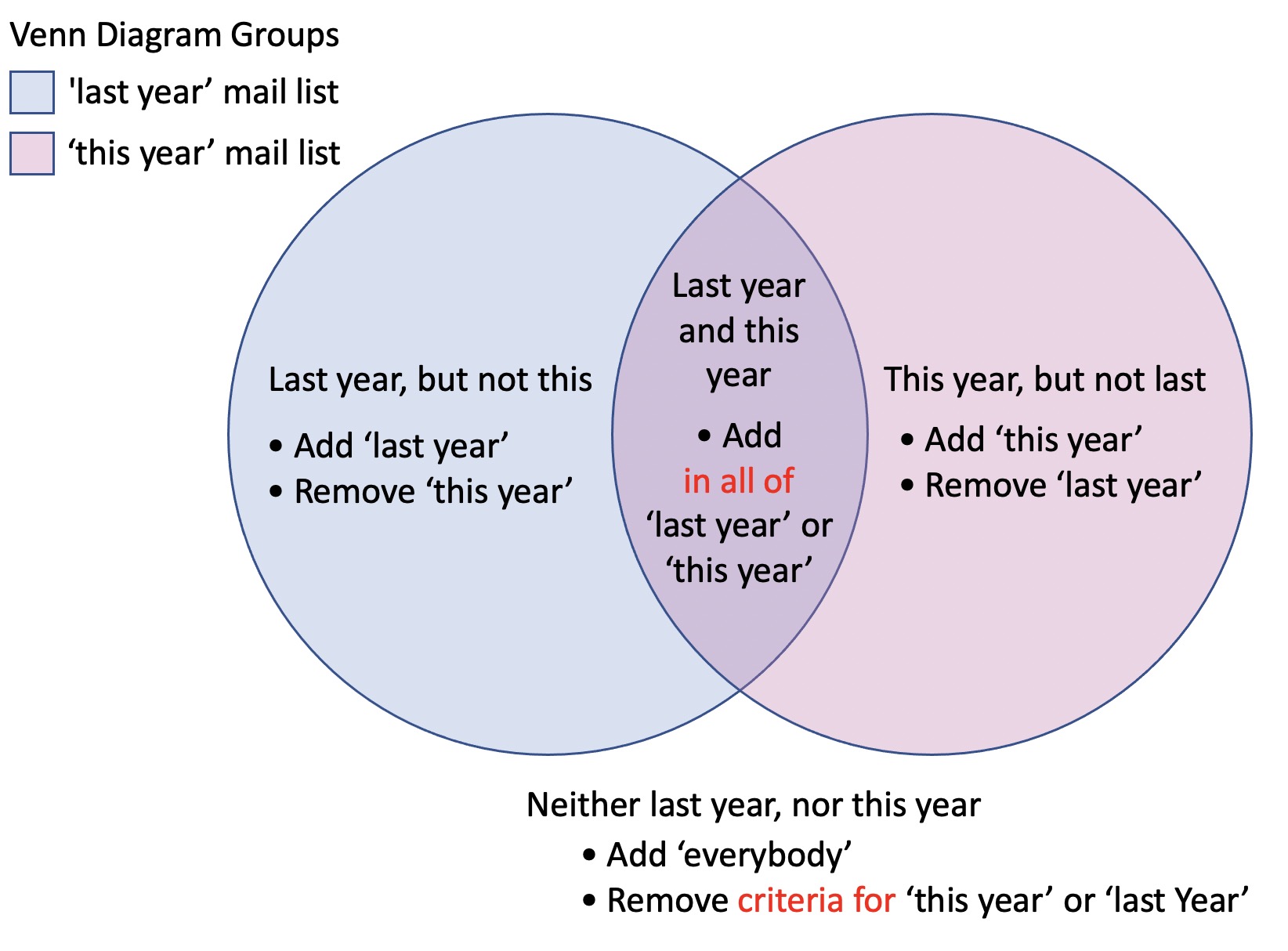
There are 4 combinations that seem a little harder that might require either 'Add' and 'Remove' groups or more than one mail list as illustrated in the Venn Diagram above. These slightly more complex groups are:
- Blue group but not in Pink - or in the example above Patrons who did something last year but not this year. This type of group describes two very common data base search needs:
- per the example above LYBUNT - last year but not this
- SYBUNT - some year but not this
- Pink group but not in Blue - or using the example above Patrons who did something this year but not last year
- in both Blue and Pink groups - or per the example above Patrons who did something in both years
- in neither Blue and Pink groups - or Patrons who did not do anything in either year
 |
The key difference in the above searches is that multiple data records must be considered before the patron is selected. In the simple example of gave last year but not this, Theatre Manager needs to consider two DISPARATE SETS of data records to find the difference. |
|
Multiple criteria are represented by add/remove groups .. which you can think of as combining multiple Venn Diagrams together. |
|
Individual criteria groups can use the having clause to create very powerful queries that find very targeted groups of patrons.
eg: you can find all donors that gave 3 or more times last year and didn't give 5 or more times the year before. |
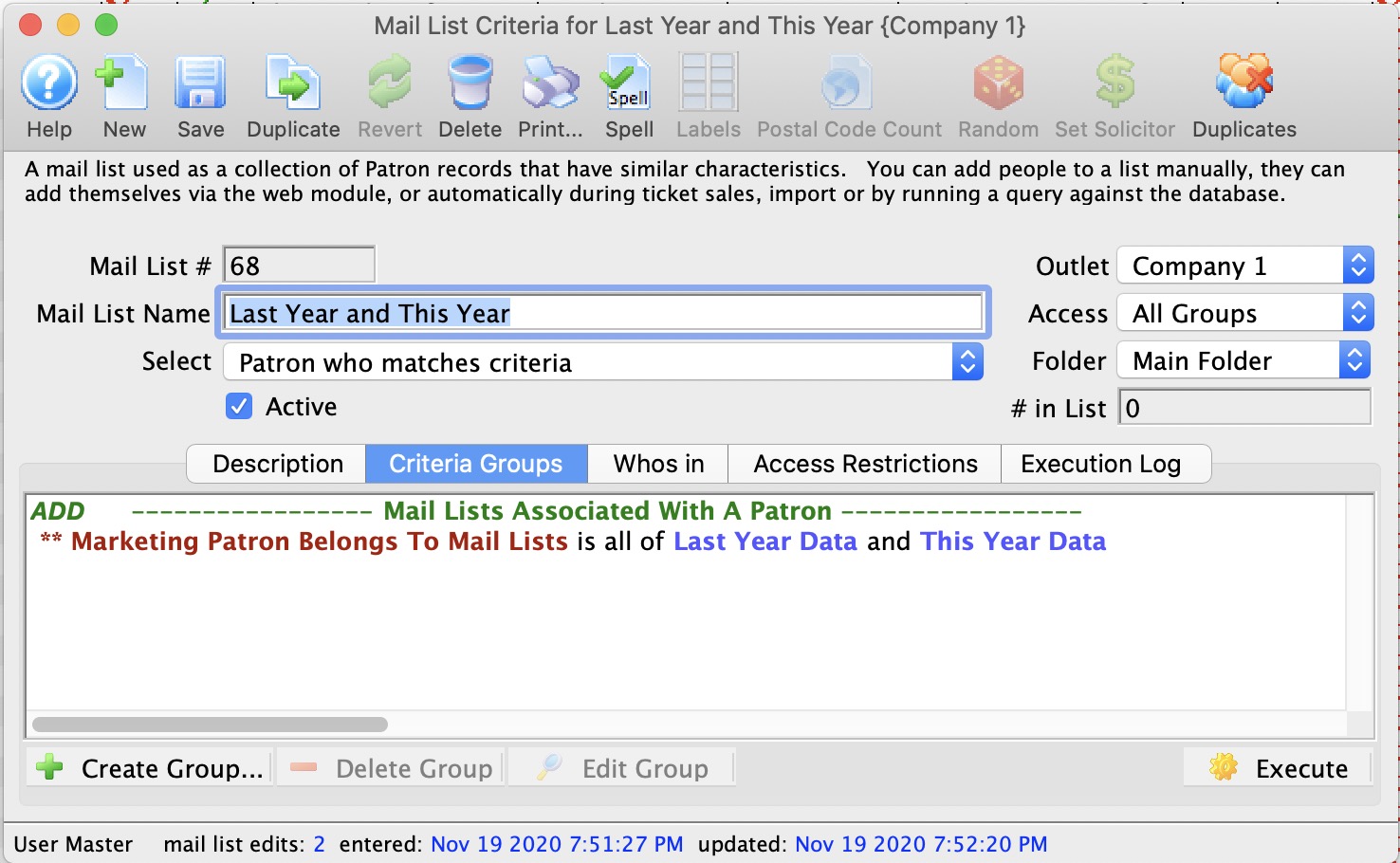
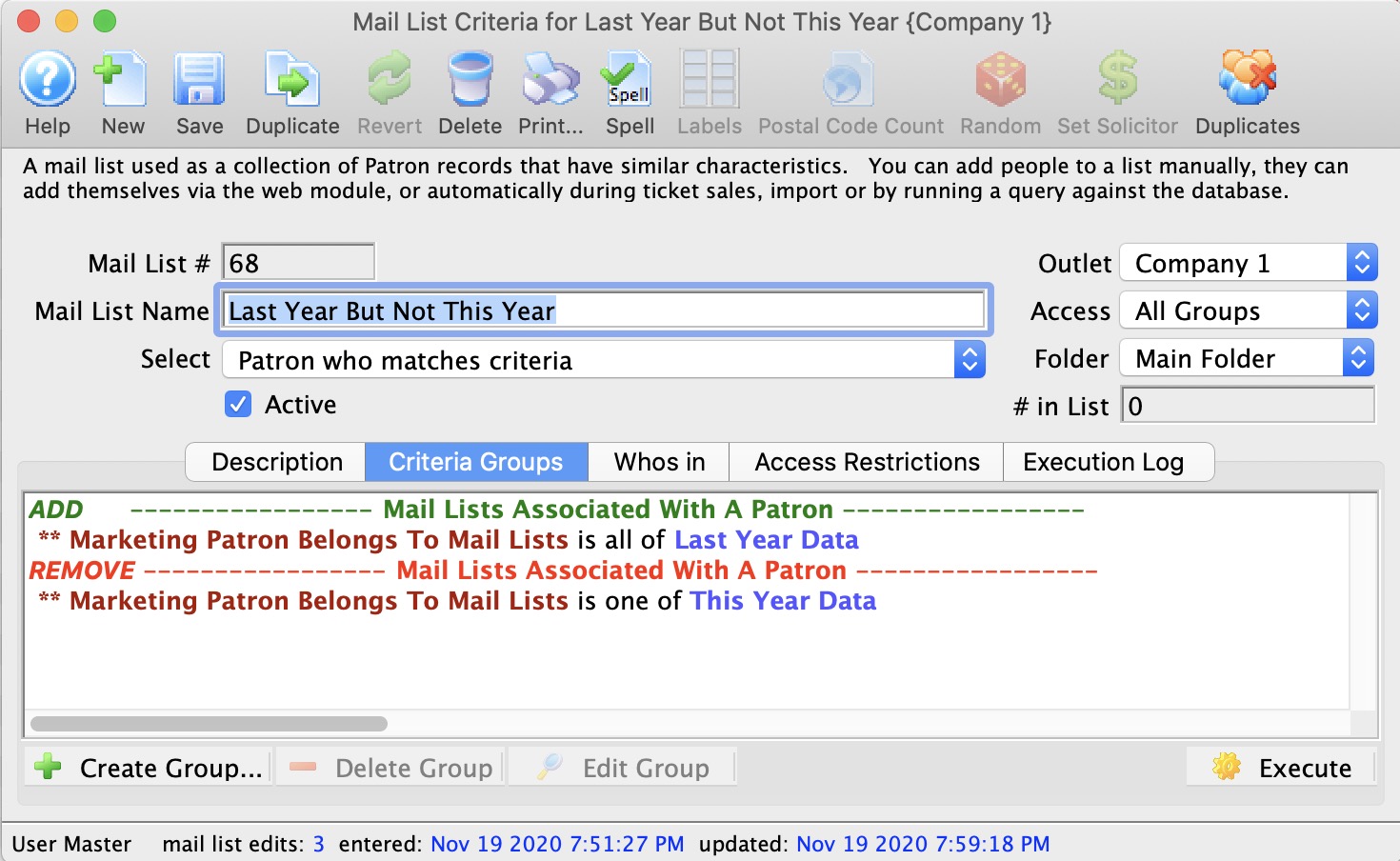
Last year but not this(Blue group but not in Pink) One way of thinking of this is people who are in one group, but not the other. There are two ways to accomplish this:
|
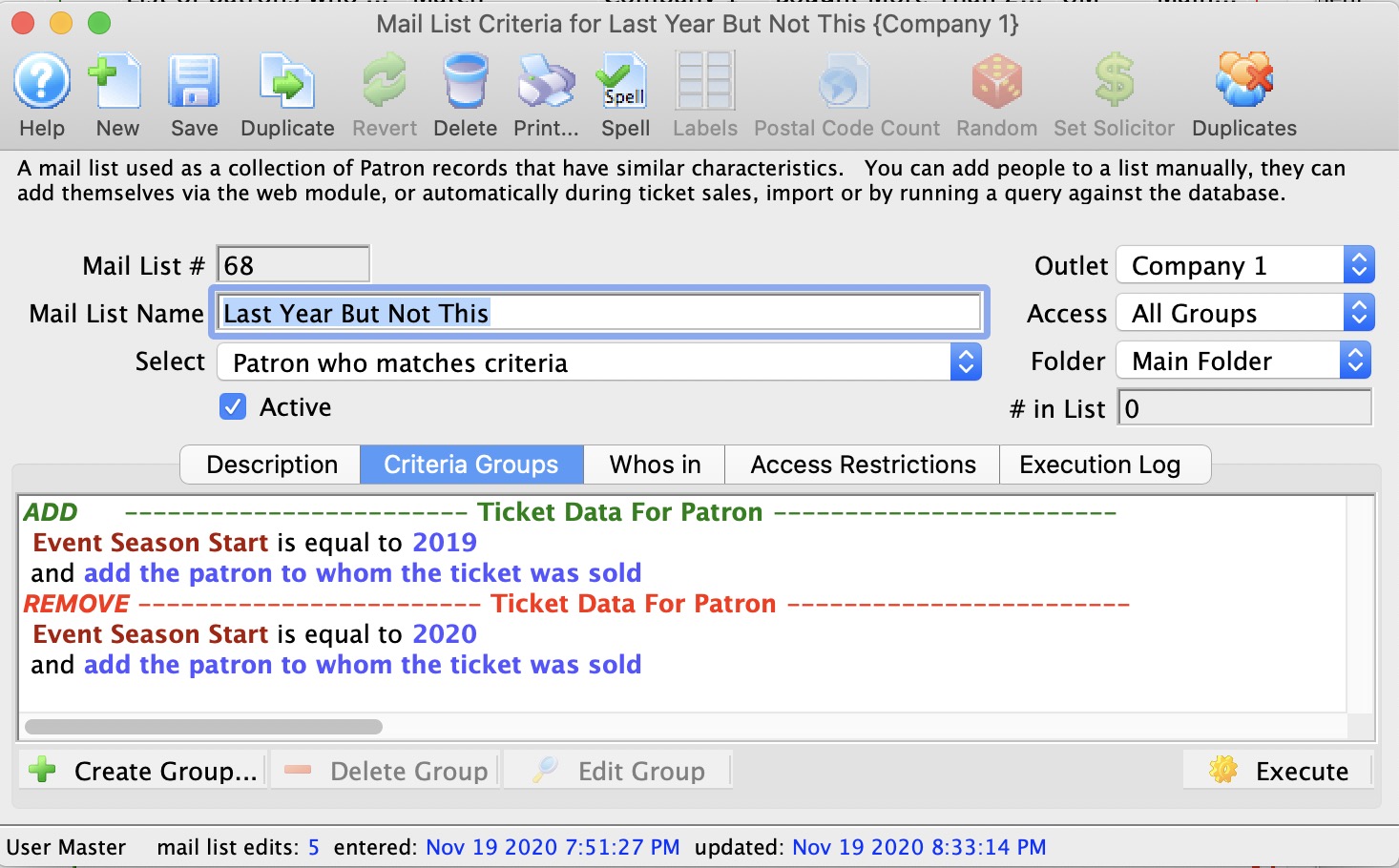 The above example shows:
This is similar to the above since it has both add and remove groups. The criteria within the group just happens to refer to previous mail lists that have been built to identify the SETS of patrons. |
||
This year but not last(Pink group but not in Blue) This is similar to the case for 'last year but not this'. The criteria is simply reversed - since in both cases you are taking one SET (group) of patrons and removing the second SET (group) of patrons. Again, you can:
|
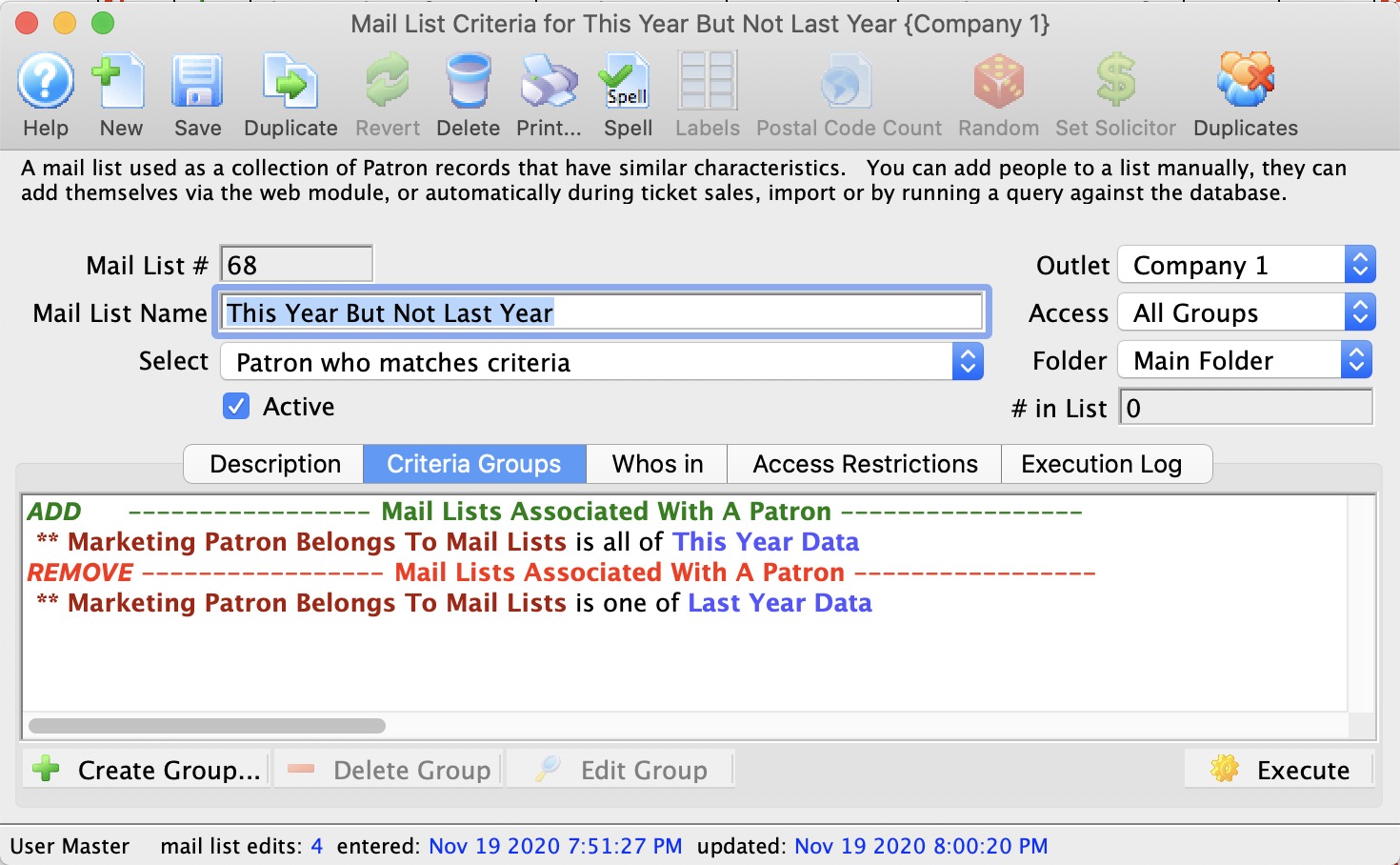 This example shows the use of two mail lists to find the difference in the groups of people. You could use the add and remove group approach as per the previous example. |
||
In both groups(in both Blue and Pink) Something that must be in two groups is called the intersection set. To find patrons like this in theatre manager, you need to do it be creating two temporary lists. eg:
|
|
||
In neither groupNOT in Blue and NOT in Pink) Finding people in neither group is a little tricky. You need to find the group of everybody you are considering and then remove group 'A' and then remove group 'B'. You can do it in one of three ways:
|
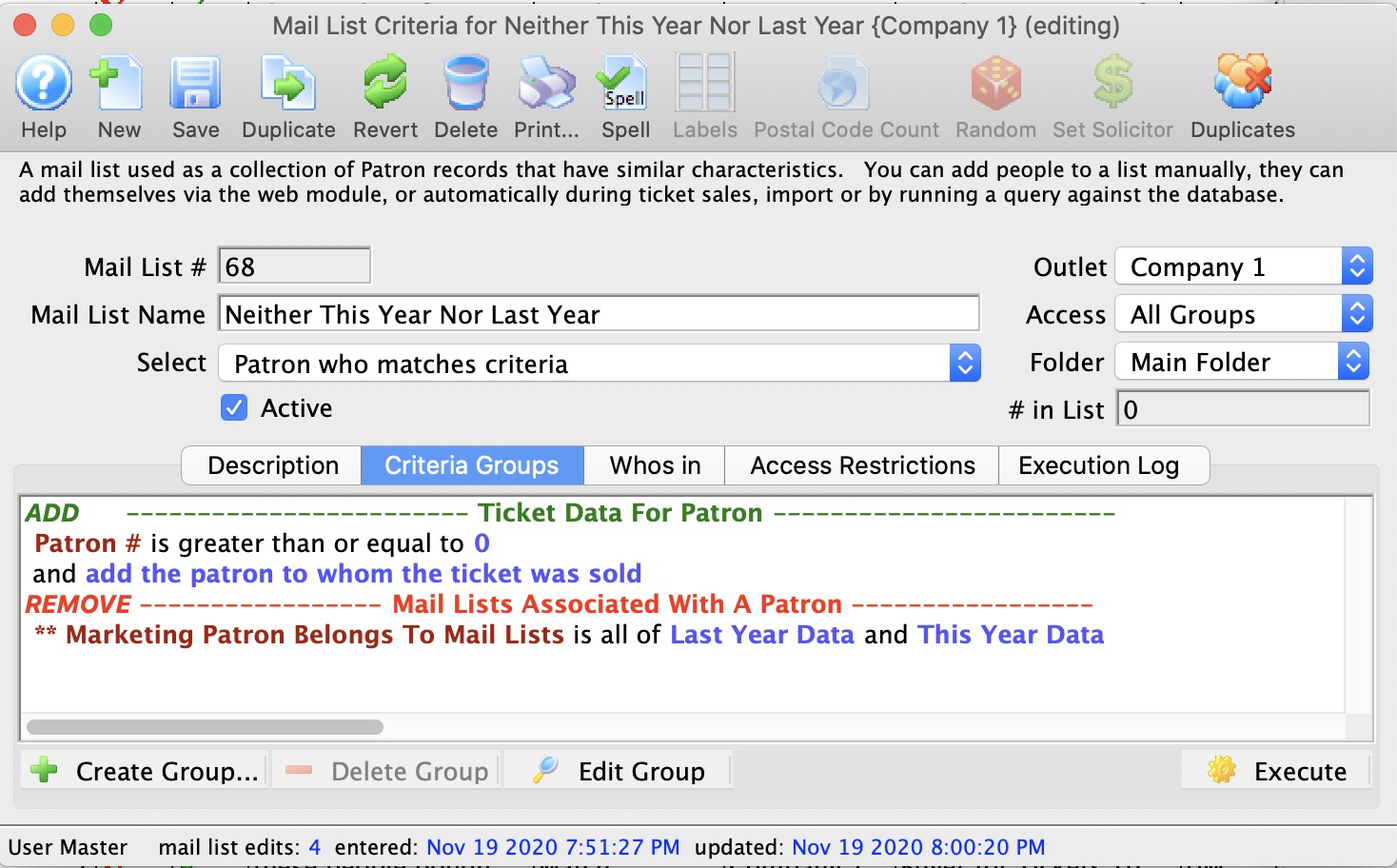 In this example, everybody is explicitly defined as all patrons with a patron number greater than zero and the remove group says patrons belongs to mail lists 'is all of' last year or thins year. They means remove patrons who are on both prebuilt mail lists (or all people who are not in last year or this year)
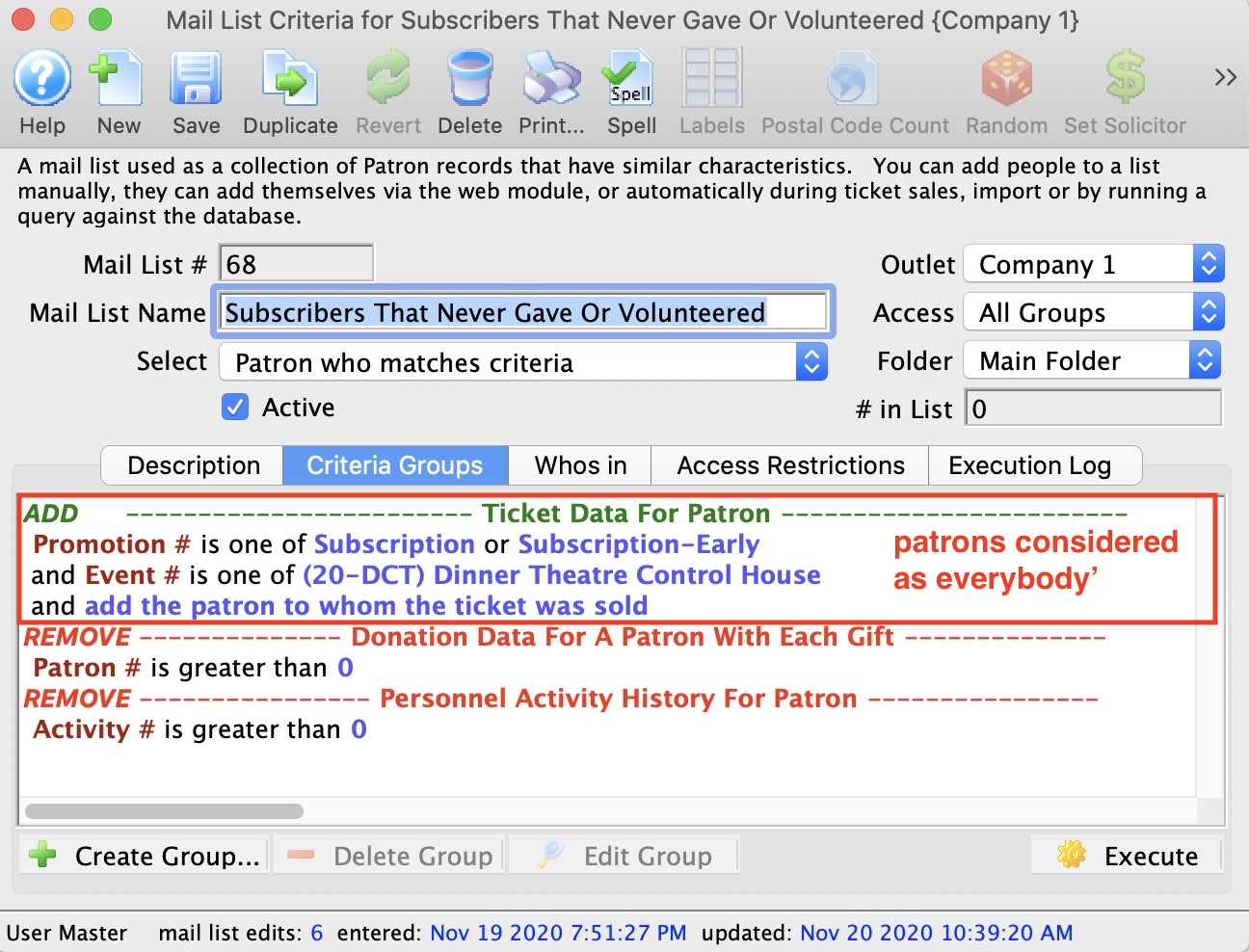
In this sample, everybody is patrons who are subscribers and part of the control house for dinner theatre. It then removes all donors and them removes all volunteers.
This results in subscribers who have never donated or volunteered.
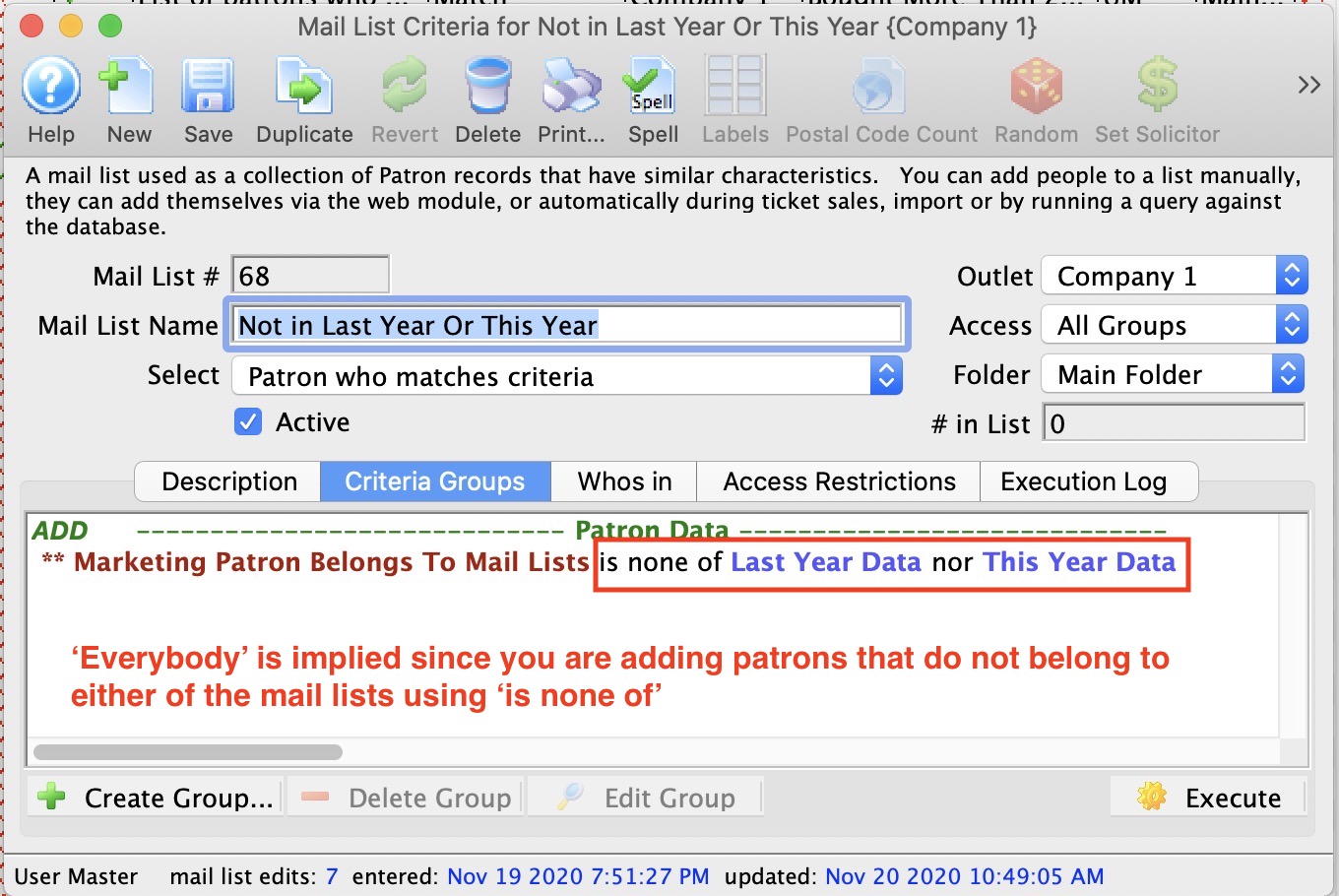
In this example, we are looking for everybody who does not belong to any of the two prebuilt mail lists. Everybody is implied since Theatre Manager scans for all data, unless explicitly told not to. In this case, Theatre Manager was told to only include people 'in none of' the mail lists. |
Combining Mail Lists
By combining mail lists you can gain access to the data of many lists and from that data form a new list. Unlike merging the mail lists, you are able to keep the original mail lists and their data intact and unchanged.
To combine mail lists, you perform the following steps:
- Open the Mail List Window.
Click Here to learn how to open the window.
- Click the New
 button.
The Mail List Inserting window opens.
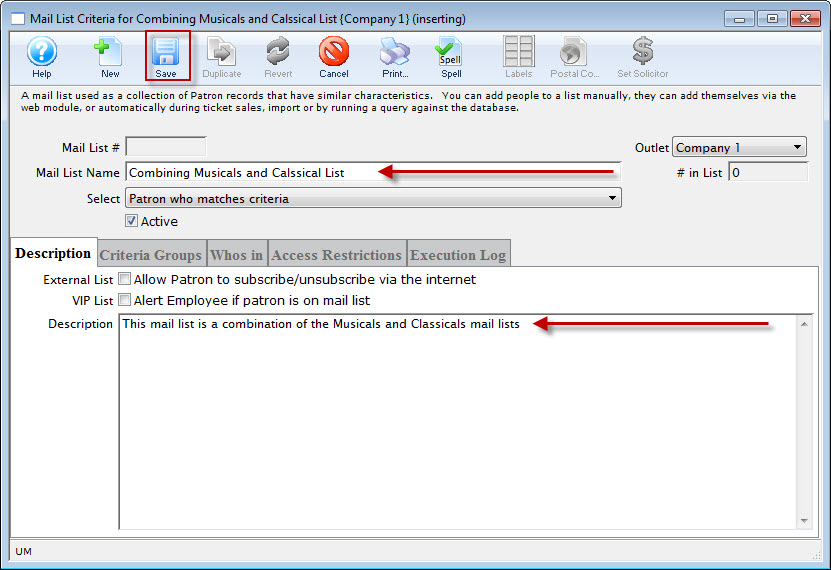
- Enter a Name and Description for the list.
- Click the Save
 button.
- Click the Criteria Groups
 tab.
tab.
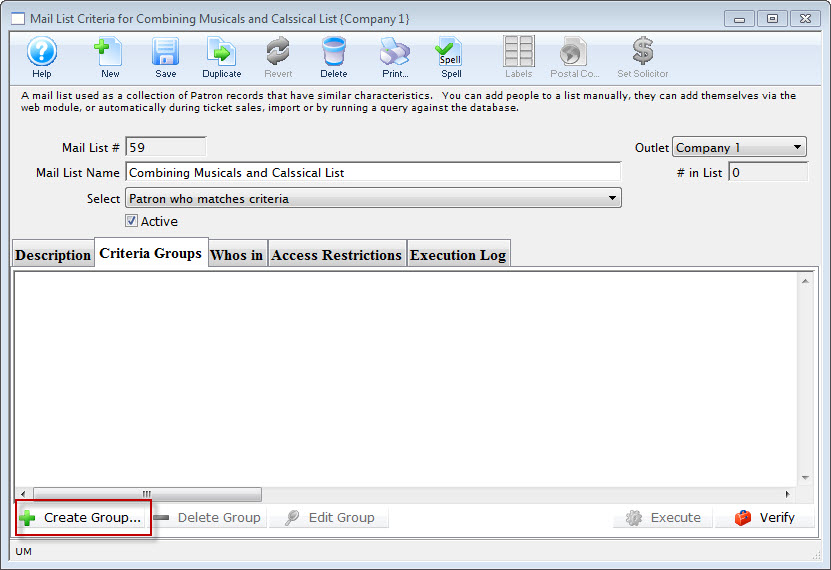
- Click the Create Group
 button and select To Add Patrons to a Mail List.
- Select Mail Lists Associated with a Patron.
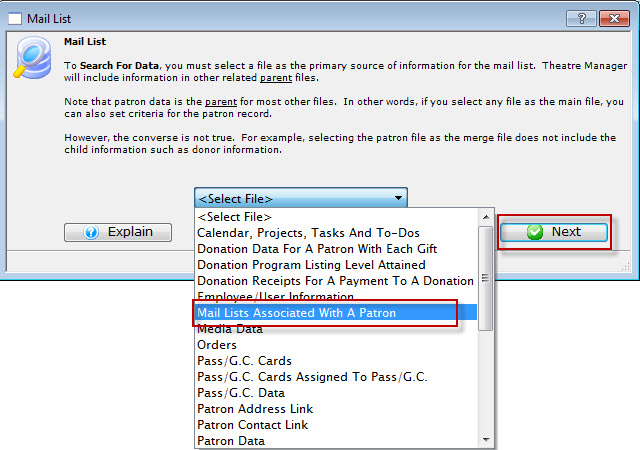
- Click the Next
 button.
The Parameter window opens.
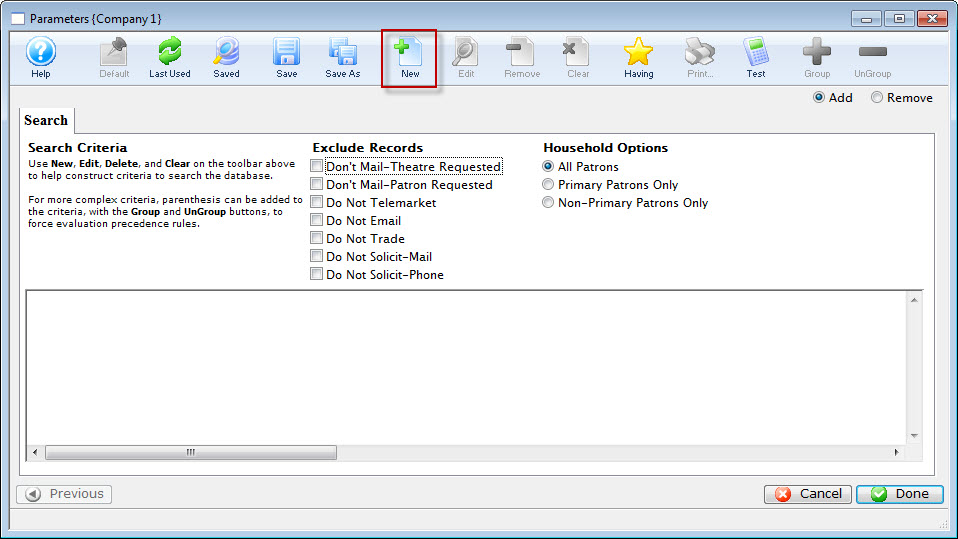
- Click the New button.
The Add/Edit Parameter window opens.
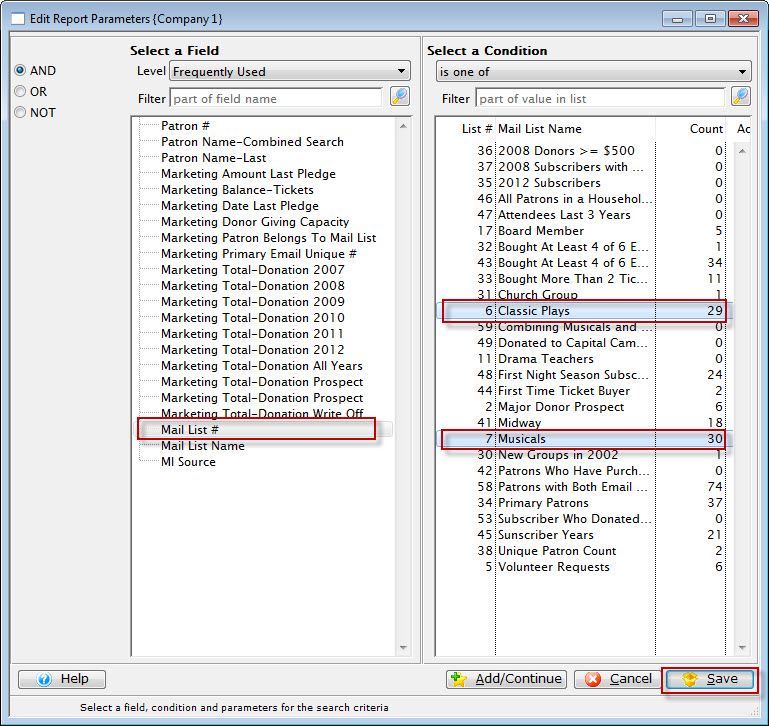
- Select a field and condition.
For this example the field will be "Mail List #" found under Mail List Setup and the condition will be "is one of"
- Select the mailing lists to be combined.
Hold the Ctrl (PC) or Command (Mac) key to select multiple lists at a time.
- Click the Save button.
You are returned to the Parameters window.
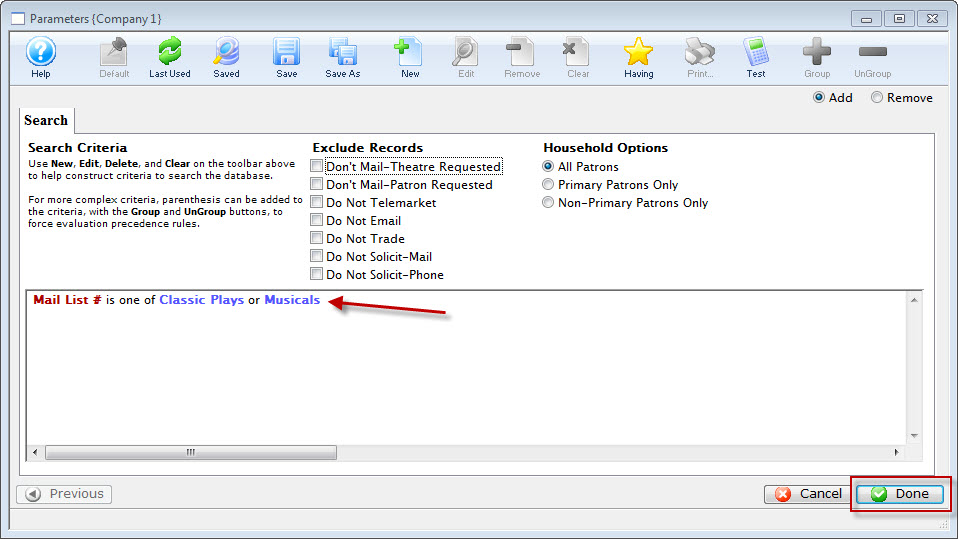
- Click the Done
 button.
You are returned to the Mail List Criteria window.
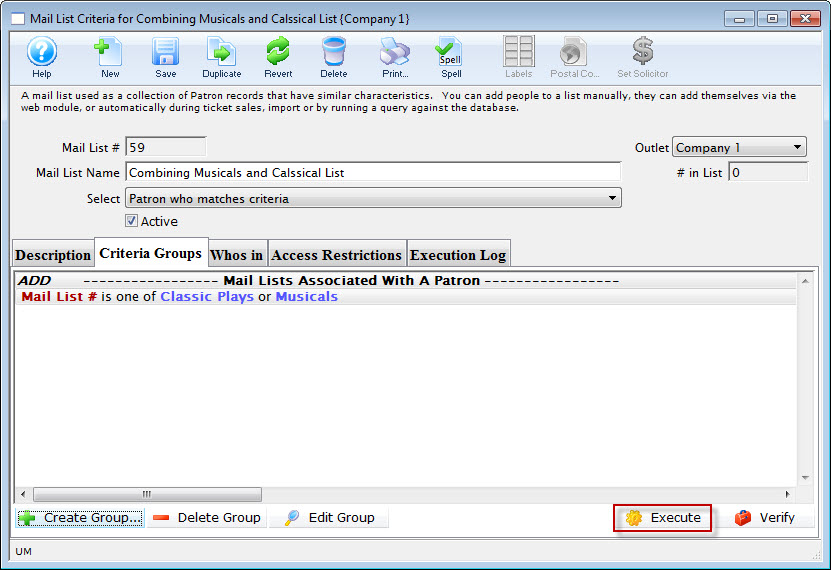
- Click the Execute
 button.
The data from the selected mail lists will be combined.
If the criteria is changed in one of the combined mail lists the combined mail list must be executed again to update the information.
LYBUNT - Last Year but not this year
You can apply it in many ways to ANY DATA in the database. For example, Patrons who:
- volunteered the past 3 years, but not this year
- Donated every even year, but not this year
- Subscribed 4 years ago but not 3 years ago
- Lapsed donors who donated last year but did not buy a ticket this year
- This example is interesting because it was applied to different types of data -- the data file for the second criteria (tickets) is not the same as the data for the first (donations)
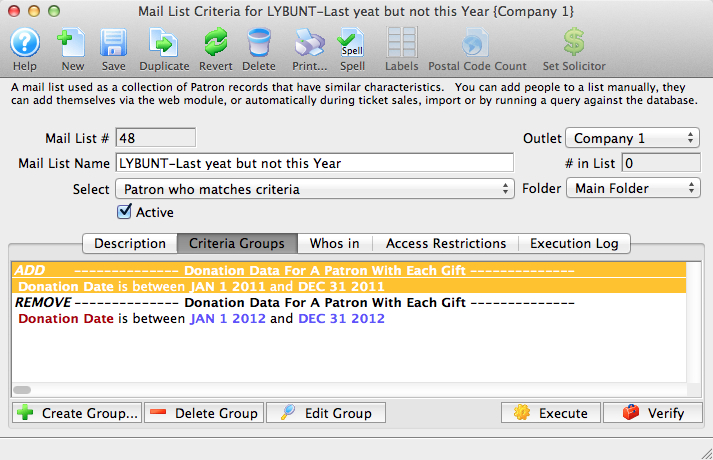
In Theatre Manager, to identify WHO falls into this category, we use a mail list with two groups.
- The first group adds people to the mail list using criteria from the past
- The second group removes people from the mail list using criteria from the present
In the the example below, a very simple data range has been used for both criteria. You can make the criteria as complex as possible, by including items such as:
- date range
- Multiple Campaigns
- Certain Giving Levels
- Address where the patron lives
- and more
IN ALL CASES, THE CONCEPT IS THE SAME -- add people matching data, then remove people matching other data to find out who used to be part of the group and is now not part of the group. Refer to editing mail lists to create your query to find what you want.
Variation: Removing all household members
|
Variation: Sometimes you may want to remove people if anybody in the household gave the second year. This means you must remove primary and non-primary members of the household (in two steps) |
This is possible, but involved a small nuance to the remove steps.:
- Create an add step to add patron who donated, volunteered, purchased tickets, or what have you.
- Create the first remove step and indicate to remove Primary patrons only.
- Create the second remove step with similar criteria, except this time, indicate to remove Non-Primary patrons only.
When removing Primary FOLLOWED BY removing Non-Primary patrons, you will end up removing all patrons in the household.

Mail List of Attendees to Multiple Events
- donated multiple times
- volunteered multiple times
- received multiple mailings or eblasts
- bought multiple gift certificates
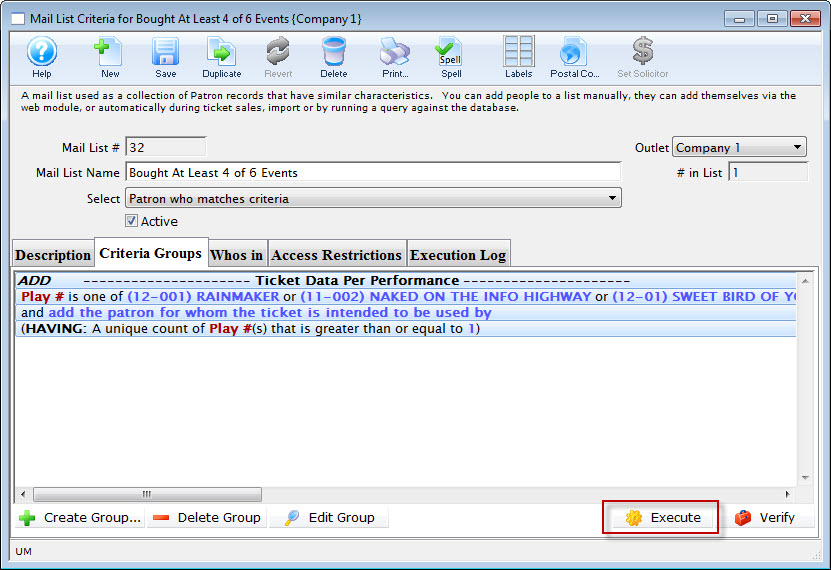
The general steps to find purchasers to multiple events are:
- Open the Mail List Window.
Click here to learn how to open the window.
- Click the New button.
The Mail List Inserting window opens.
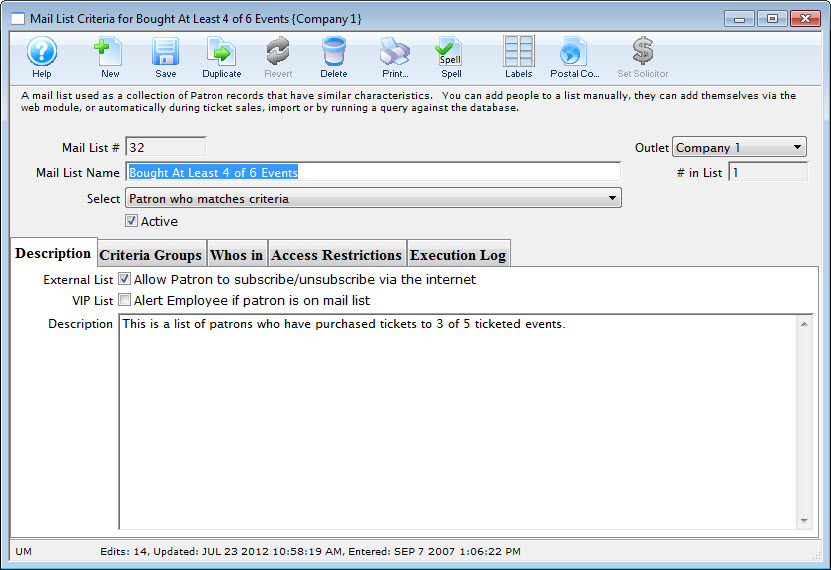
- Enter a Name and Description for the list.
- Click the Save button.
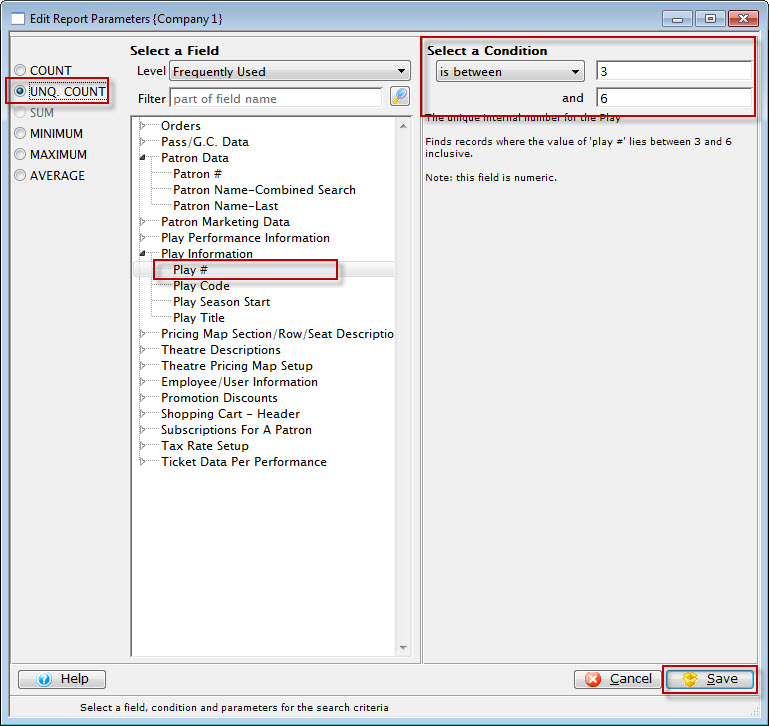
- In the Criteria Groups tab, click the Create Group button.
- Choose To Add Patrons to the Mail List.
- In the drop down list, choose ticket data per performance.
- Click the Next button.
The Edit Report Parameters window opens.
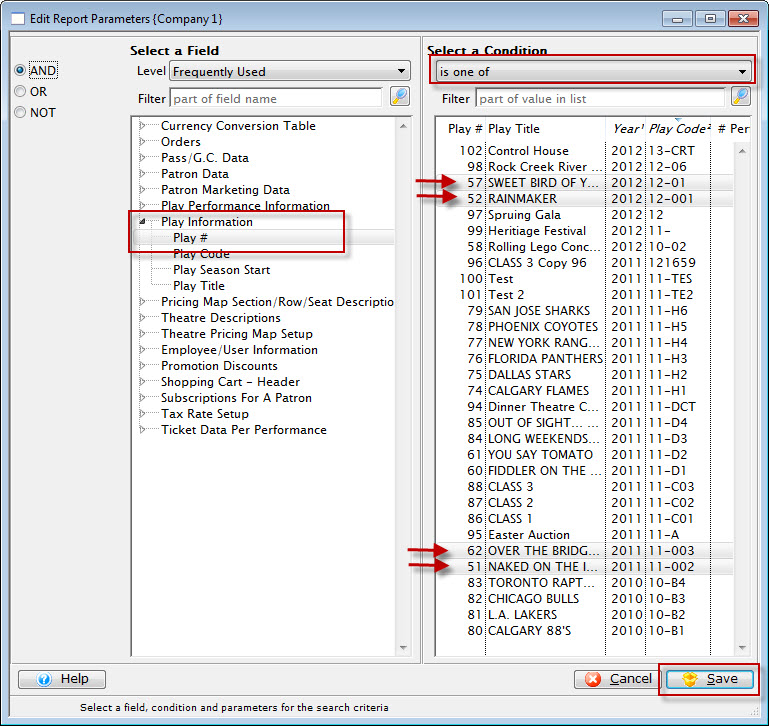
- Select the criteria 'Play #' or 'Event #' (depending on what your venue calls it) and then select multiple events from the pick list
- After you have completed making your selections, click Save.
You are returned to the Parameters window.
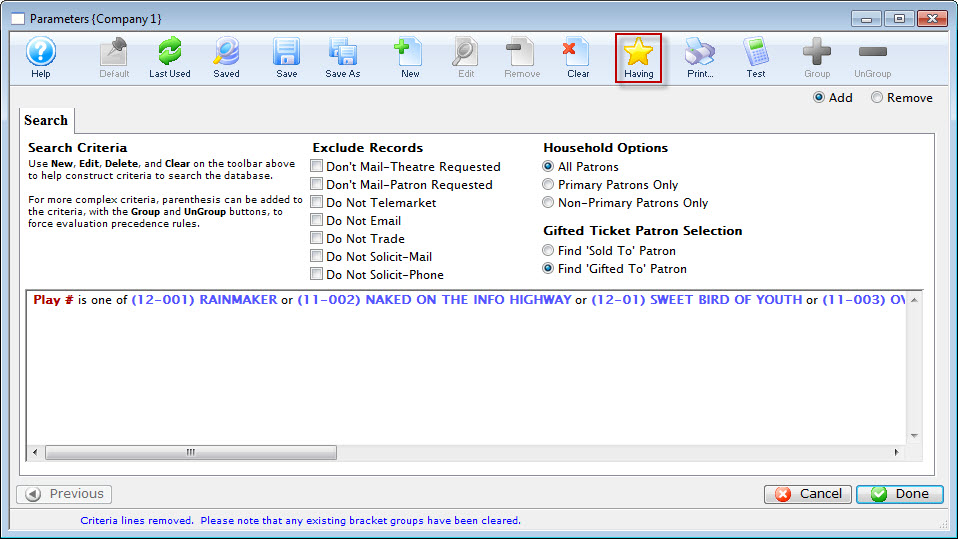
- Click the Having button on the Parameters window.
- Click Save.
The Mail List Data Selection dialog opens.
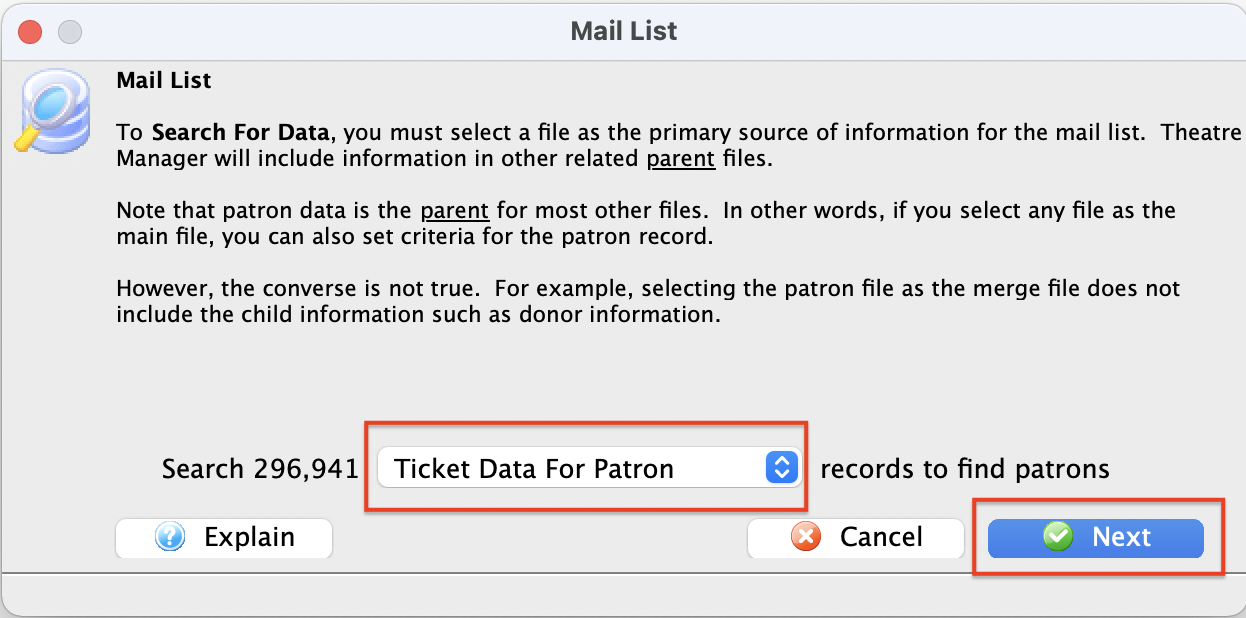
The having criteria should be the 'Event #'.
Pick Unique count on the left.
On the right, enter the range of unique events such as between 3 and 6.
When you execute the mail list, you will get people who have bought 'distinct' events out of the criteria you selected.
You can make the first part of the criteria as complicated as you wish, such as 'all regular tickets' that were 'sold by user xxx' and were 'sold on a thursday afternoon' just by adding more lines to the regular criteria as you've done before.
Mail List of Patrons Attending an Event
In this example, of creating a mail list of Patron Attending an Event, the event name will be "Rolling Lego Concert". This mail list will only function if the Confirm Attendance function is being used.
- Open the Mail List Window.
Click here to learn how to access this window.
- Click the New button.
- Enter a detailed name for the list.
- Enter a detailed description of the mail list.
This mail list is comprised of patrons who attended the recent Rolling Lego Concert.
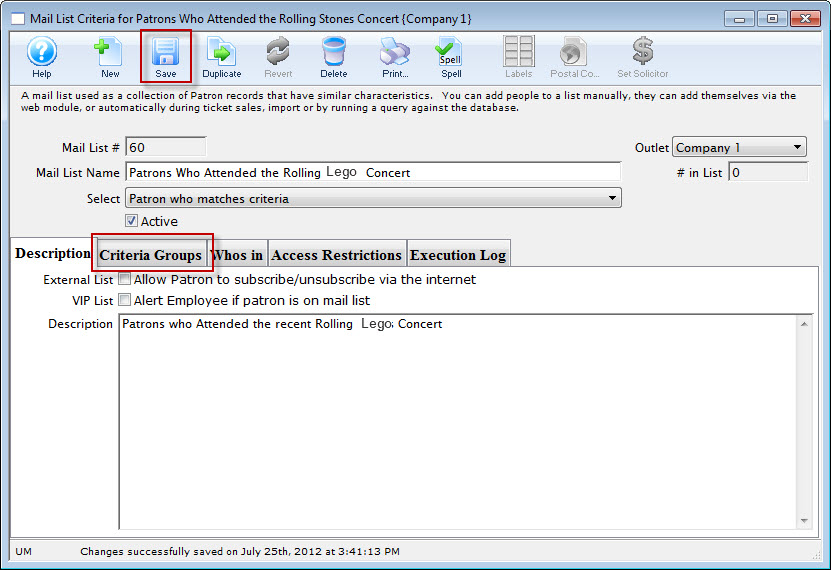
- Click the Save button.
Once this information has been entered you can now begin to enter your criteria.
- Click the Criteria Groups tab.
- Click the Create Group button.
- Choose To Add Patrons to the Mail List.
The Mail List Data Selection dialog opens.
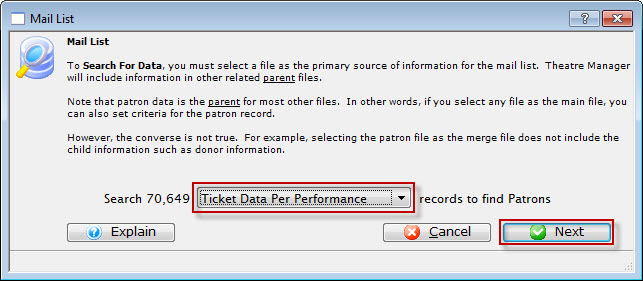
- Choose "Ticket data per Performance" file.
- Click the Next button.
The Parameter window opens.
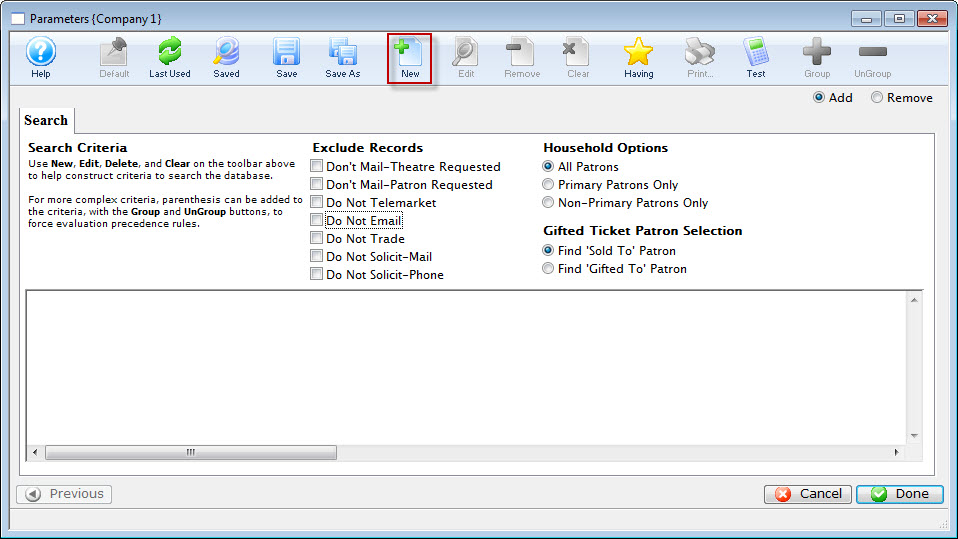
- Click the New button.
The Add/Edit Parameter window opens.
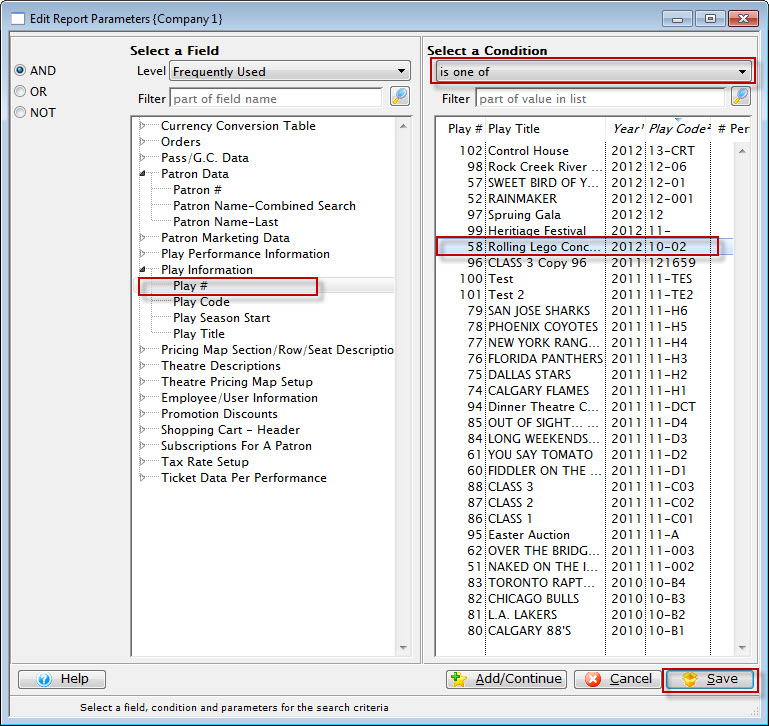
- Choose "Play #", "is one of", select "Rolling Lego Concert".
- Click the Save
 button.
You are returned to the Parameter window.
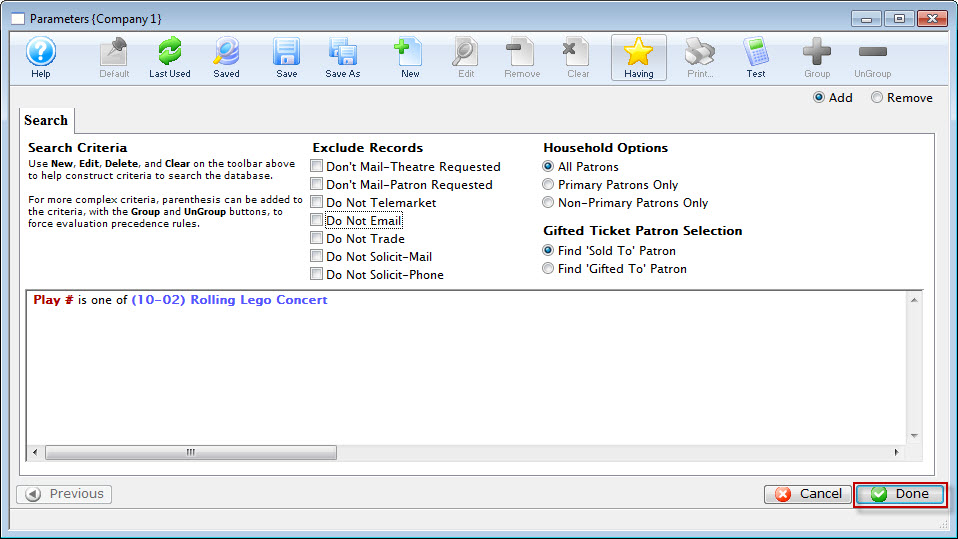
- Click the Done button.
You are returned to the Mail List Criteria Groups tab.
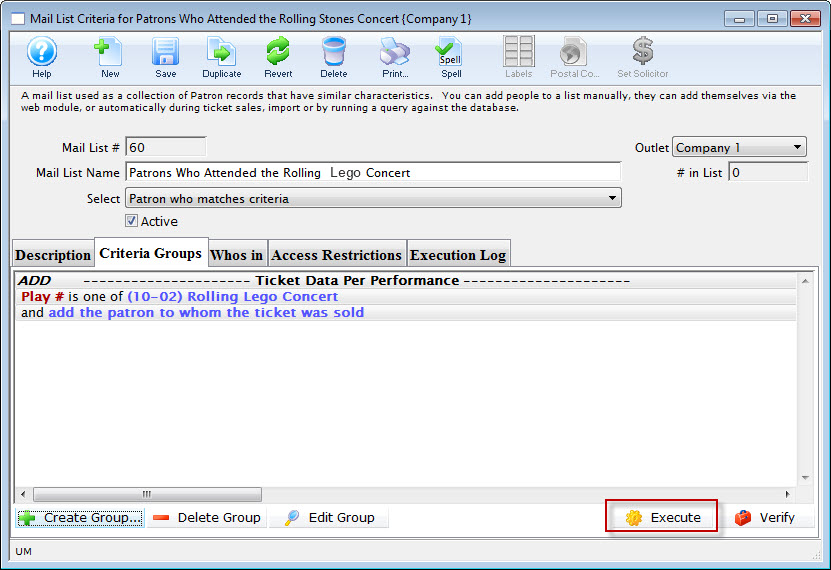
- Click the Execute button.
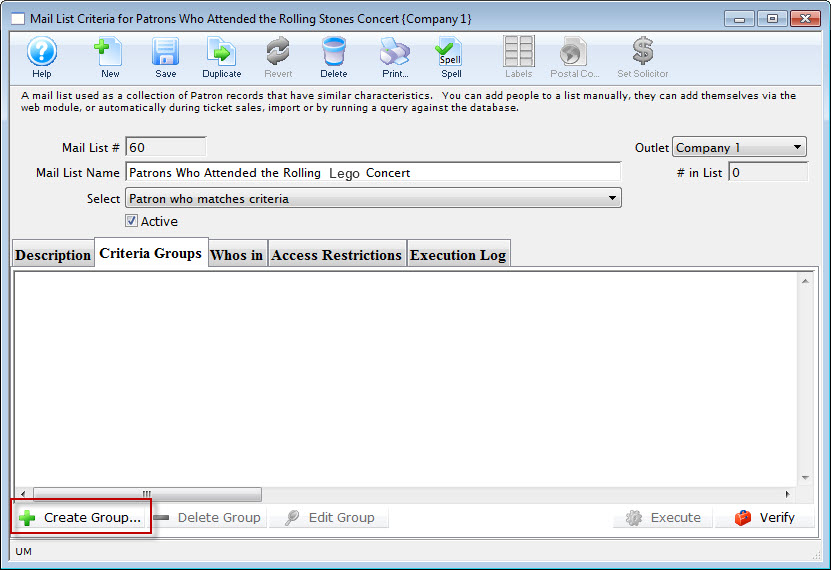
Mail List of Patrons Whose Combined Payments in a Year total XXXX Plus
- Add Group: Choose Donation Receipts for a payment to a donation
- Criteria: Donation Date is between January 1, 2012 and Dec 31, 2012
- and Donation Receipt date is between January 1, 2012 and Dec 31, 2012
- Having The sum of Donation Receipt Amount is greater than or equal to $1200
This will give you a list of donors who have donated between the time frame where the sum of the receipts ( payments ) is $1,200 +
|
If you want to know donors who have donated in the past whose sum of their receipts during this time span is greater than or equal to $1,200 - do not use Donation Date is between XX and YY. |
The steps to find Patrons Whose Combined Payments in a Fiscal Year total $####+ are:
- Open the Mail List Window.
Click here to learn how to open the window.
- Click the New button.
The Mail List Inserting window opens.
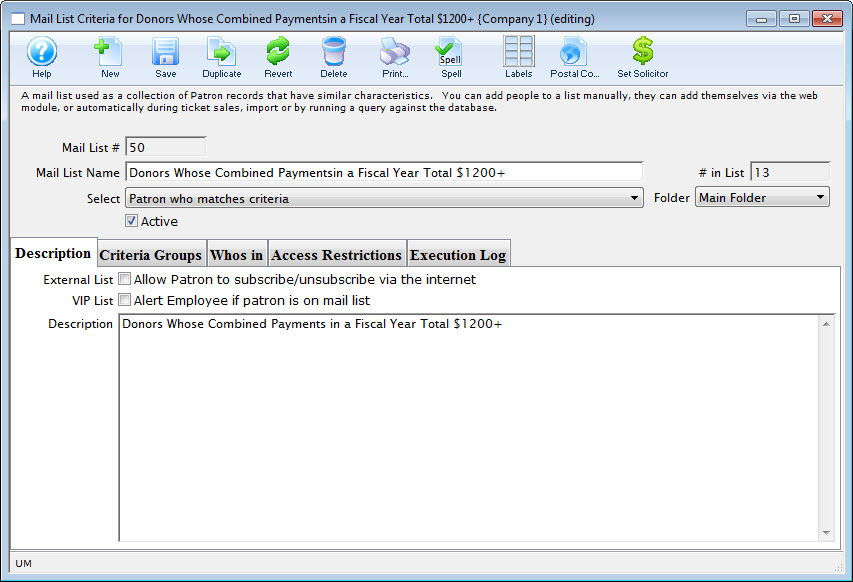
- Enter a Name and Description for the list.
- Click the Save button.
- In the Criteria Groups tab, click the Create Group button.
- Choose To Add Patrons to the Mail List.
- In the drop down list, choose Donation Receipts for a Payment.
- Click the Next button.
The Edit Report Parameters window opens.
- Click the New button to open the Edit Report Parameters window.
- Select the criteria Donation Date is between (Date Start of desired span) and (Date End of desired span).
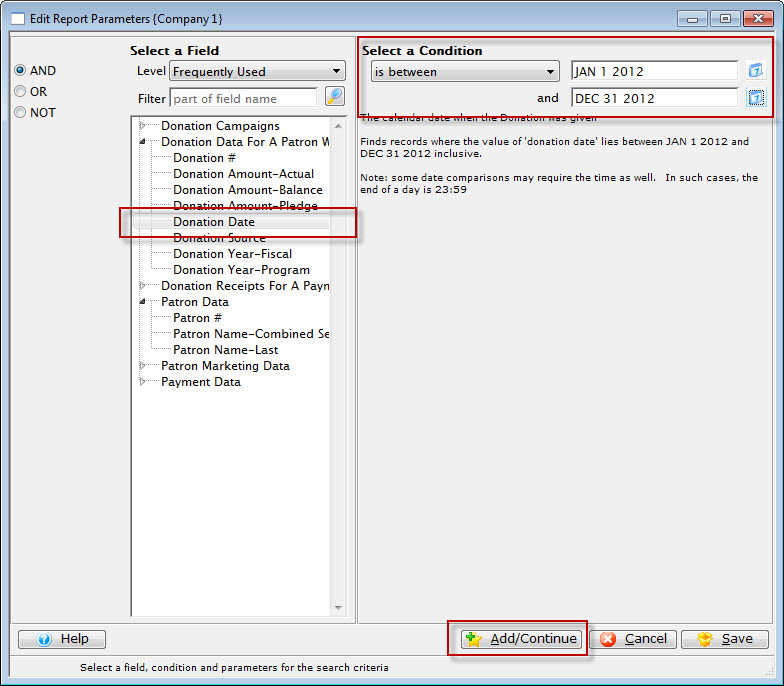
- Click the Add/Continue
 button.
- Select the criteria Donation Receipt Date is between (Date Start of desired span) and (Date End of desired span).
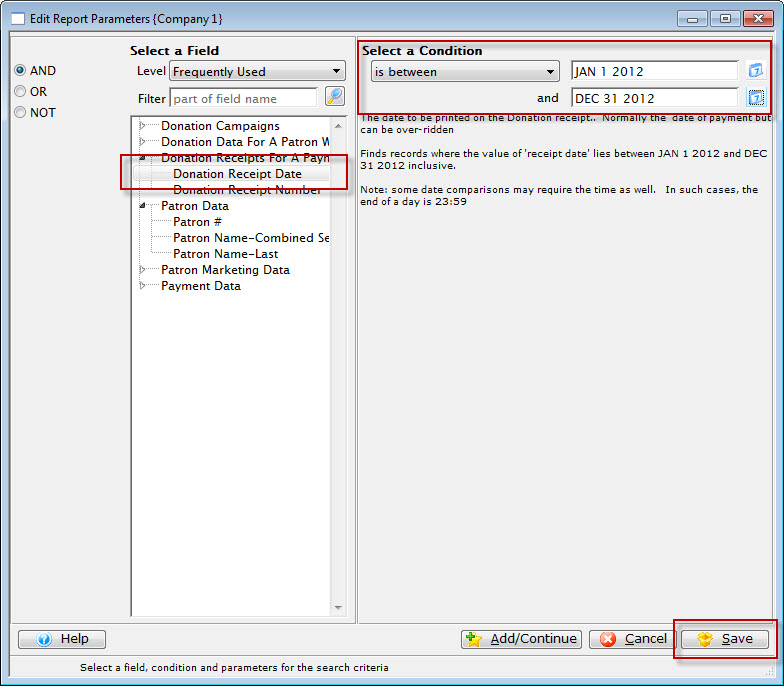
- Click the Save
 button.
You are returned to the parameters window.
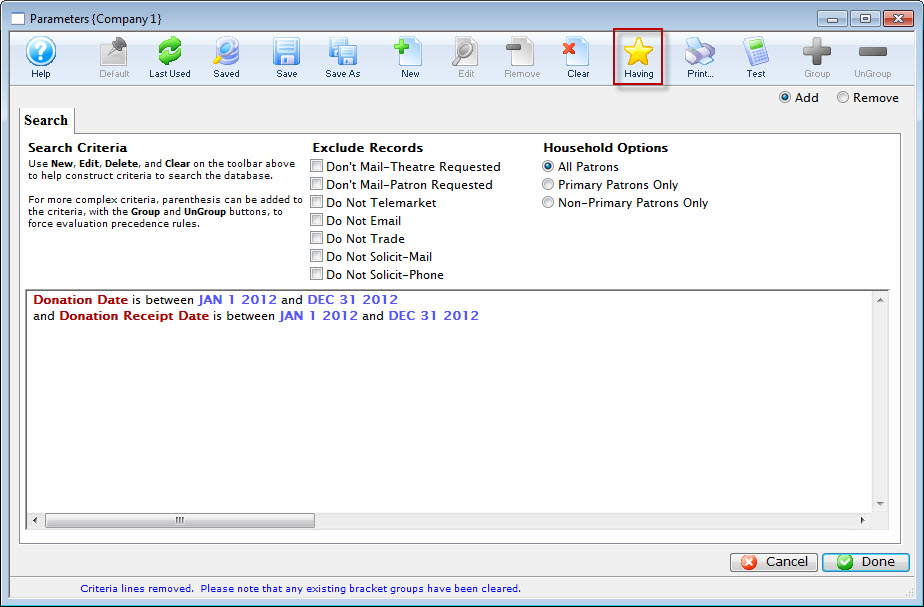
- Click the Having
 button.
The Add Parameters window opens.
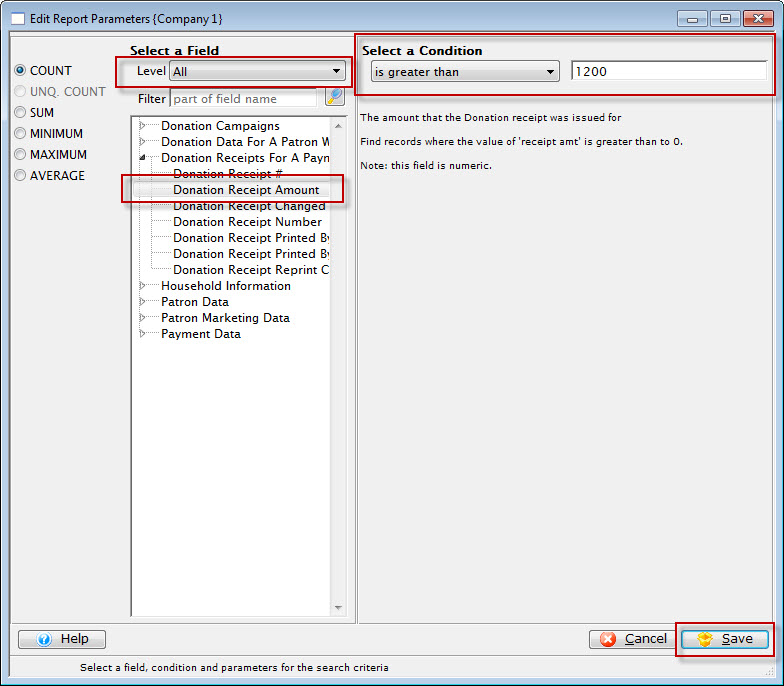
- Select Level All, the Choose the Category Donation Receipts for a Payment >> Donation Receipt Amount. Then entyer the Condition is greater than and enter the amount.
This will restrict the list to all donors whose combined PAYMENTS in the date range specified totals the amount you want plus.
For example: A list of donors whose combined payments in the fiscal year totalled $1200+.
- Click the Save button.
You are returned to the parameters window.
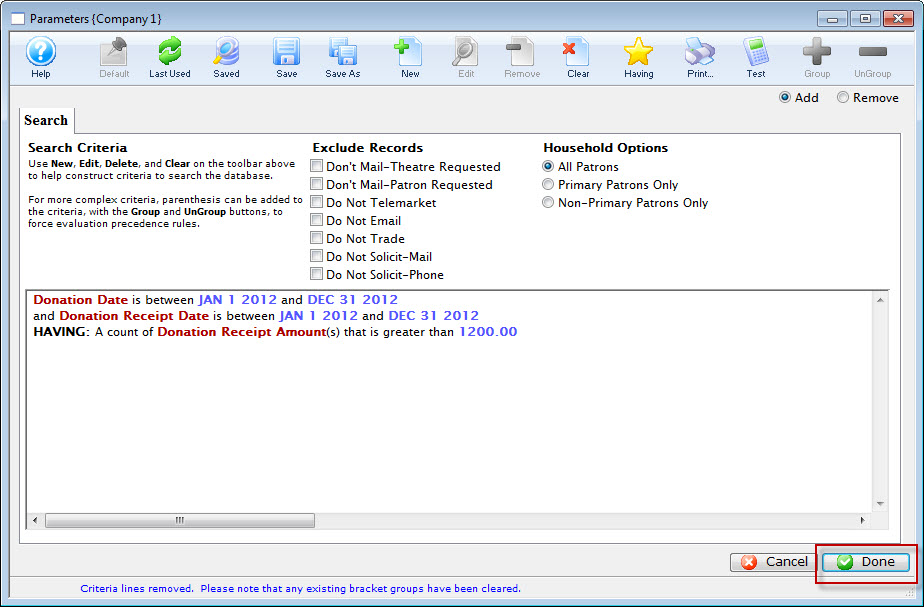
- Click the Done button.
You are returned to the Criteria Groups tab.
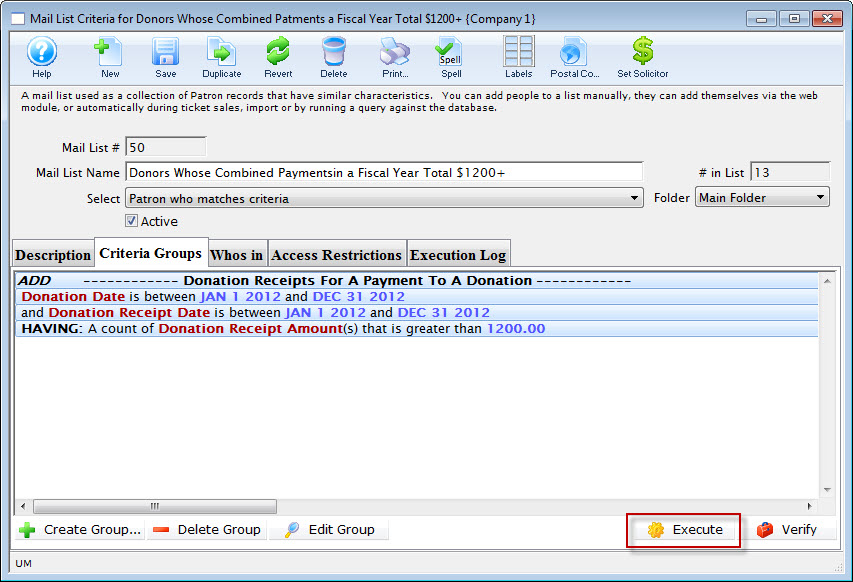
- You can now execute your querry.
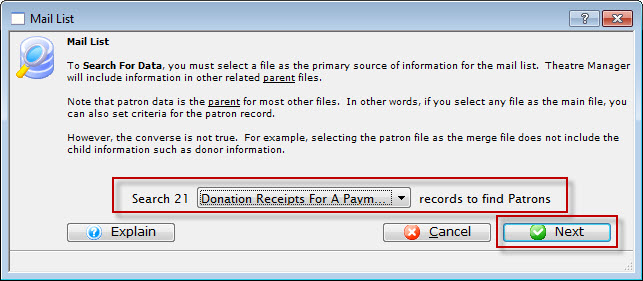
The Mail List Data Selection dialog opens.
Mail List of all Current Subscribers
To create a mail list of all of your current subscribers, you perform the following steps:
- Open the Mail List Window.
Click Here to learn how to access this window.
- Click the New button.
- Enter a detailed name for the list.
2012 Subscribers.
- Enter a detailed description of the mail list.
This is a list of patrons who are season subscribers for the year.
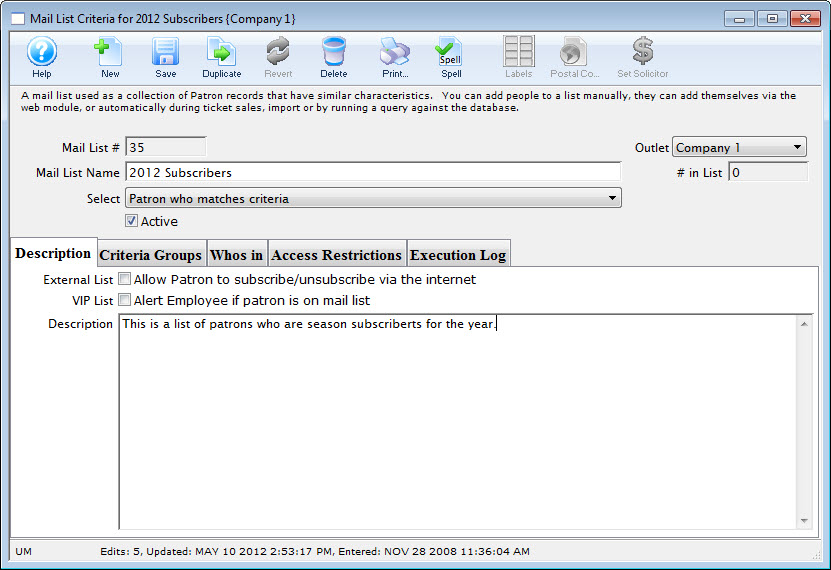
- Click the Save button.
- Click the Criteria Groups tab.
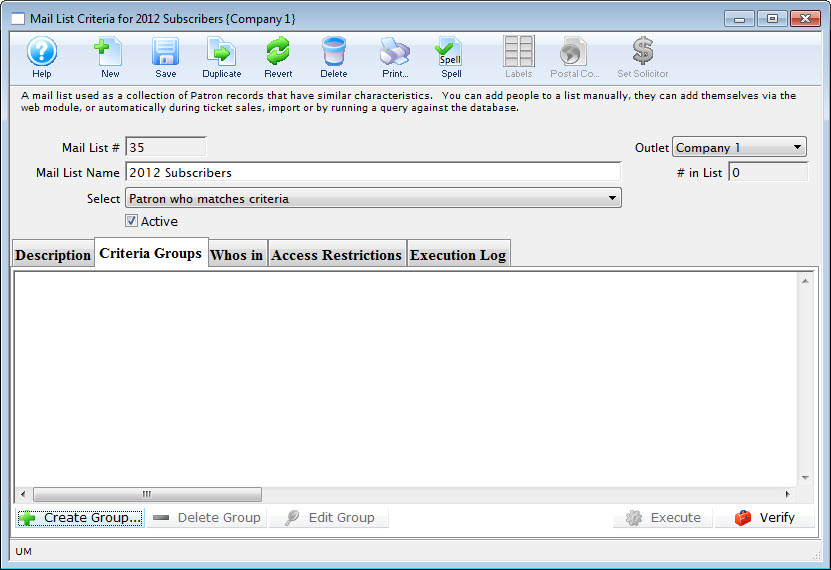
- Click the Create Group button.
- Choose To Add Patrons to the Mail List.
The Mail List Data Selection dialog opens.
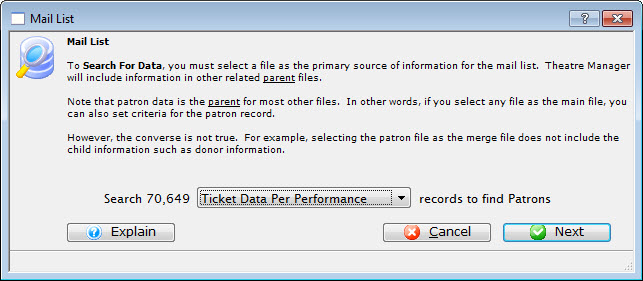
- Choose the "Ticket Data per Performance" file.
- Click the Next button.
The Parameter window opens.
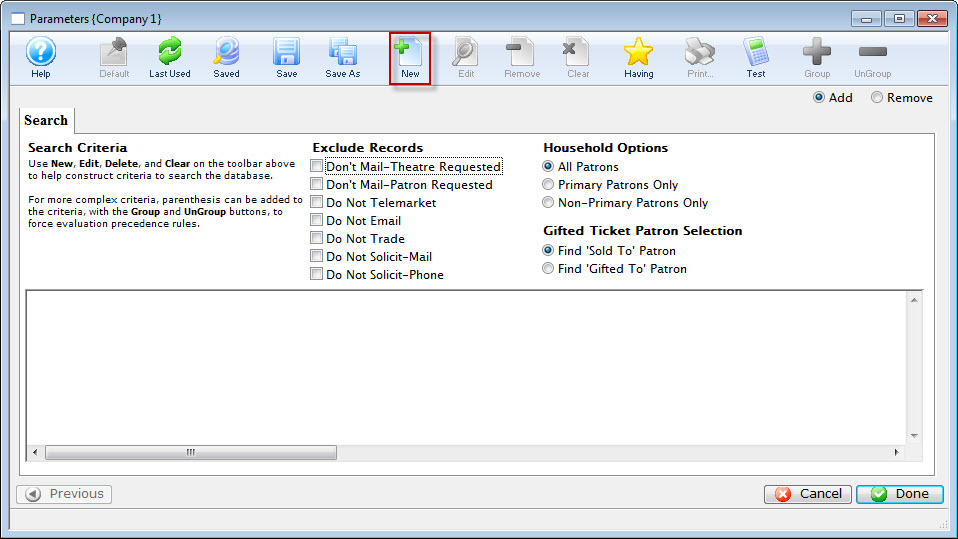
- Click the New button.
The Add/Edit Parameter window opens.
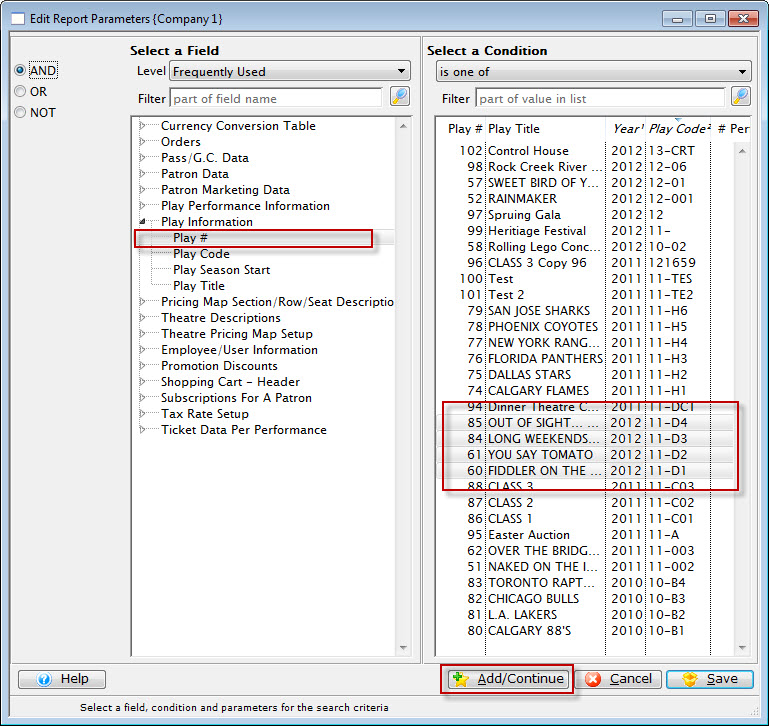
- Choose the Play Number, is one of, select the plays which are in the season subscription package.
- Click the Add / Continue
 button.
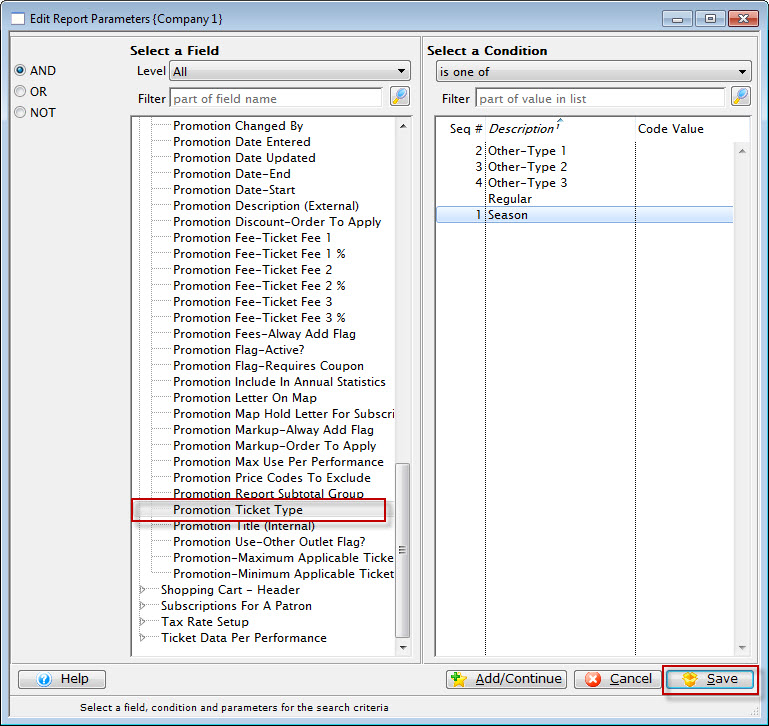
- Choose Promotion. is one of, select the promotion codes for all of the subscription types.
- Click the Save button.
You are returned to the Parameters window.
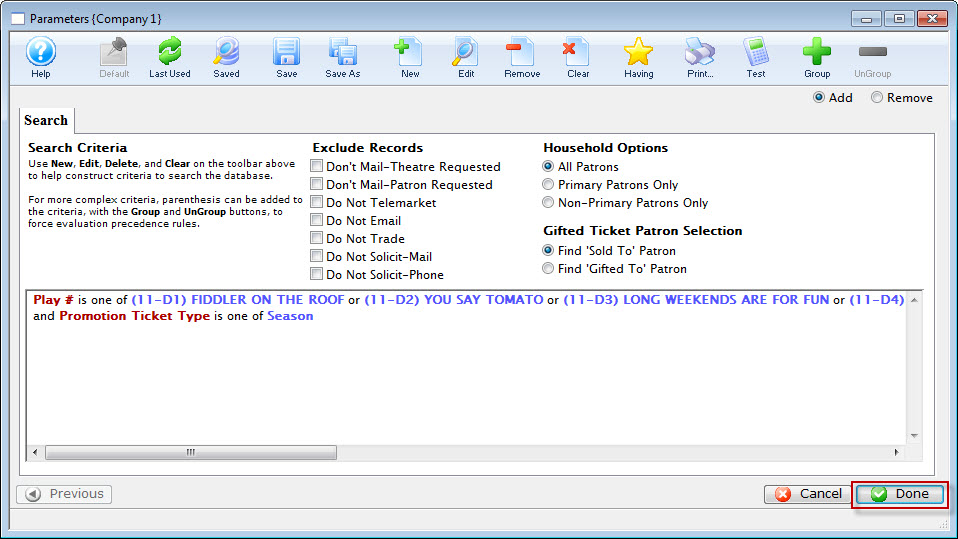

Order of Criteria is very important. If we had selected the Promotion FIRST, The query would search for the Subscription promotions in ALL performances, then search for the matching performance codes. To optimize searching, you would search for the performances and then the matching promotions. Click here to learn how to re-arrange criteria.
- Click the Done button.
You are returned to the Mail List, Criteria Groups tab.
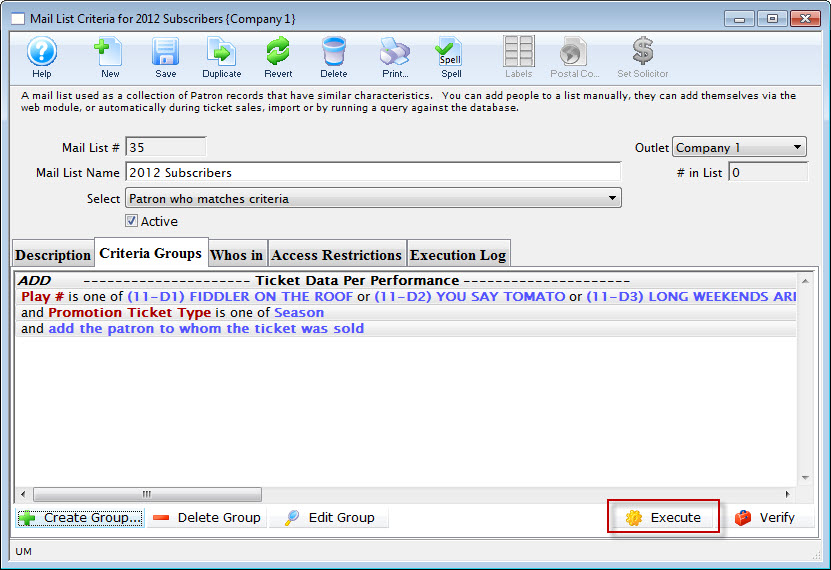
- Click the Execute
 button.
Patrons With/Without Primary Email Address
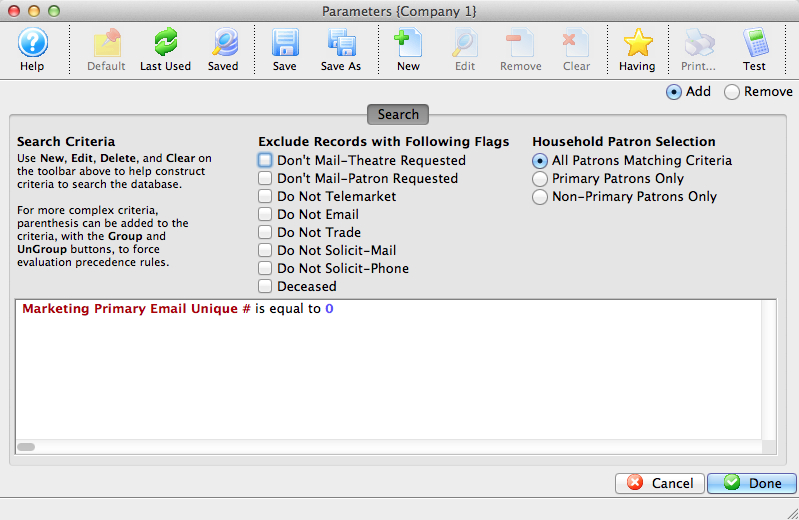
In the sample picture below, the criteria shows 'Primary Email Address'. You can just as easily search for the other 'primary' fields when adding them to the criteria. So you can use primary email address, primary fax, etc in any query.
The trick is that if somebody:
- has an email address, then the primary email address unique # will be non-zero. If that is the case, use criteria like the picture below, but change it to
Marketing Primary Email Unique # 0
- does NOT have any email address, then the primary email address unique # will be ZERO. The picture shows the criteria to find people without emails.
This criteria can be combined with just about any other criteria.