Report Cards
Being able to create, assign, and print report cards is part of the Courses module. Before report cards can be used, you need to set up the following in the Setup >> System Tables >>code tables:
- Report Card Templates, click here for more information,
- Course levels, to assign different levels or grades of classes, click here for more information,
- Report Card Categories for different areas to assess students, click here for more information,
- Report Card Ratings, to describe your system of assessment, click here for more information.
The next few pages will describe how to:
- create and assign report cards for a course based on the template(s) created in System Tables, and
- how to complete the report cards for each student.
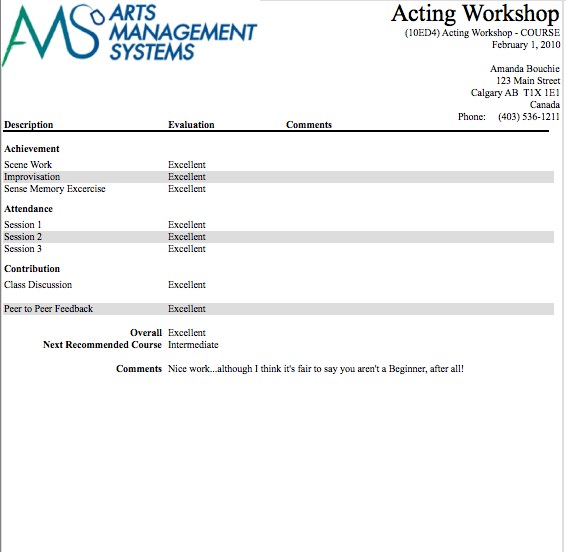
Assigning Report Cards
To assign a report card to a Course, you perform the following steps:
- Open Play from Setup or use the Plays
 button in the Theatre Manager toolbar / ribbon bar.
 - Search for the Course in the Plays List and select it to open up the Plays and Dates Window.
- Select the Performance Tab.
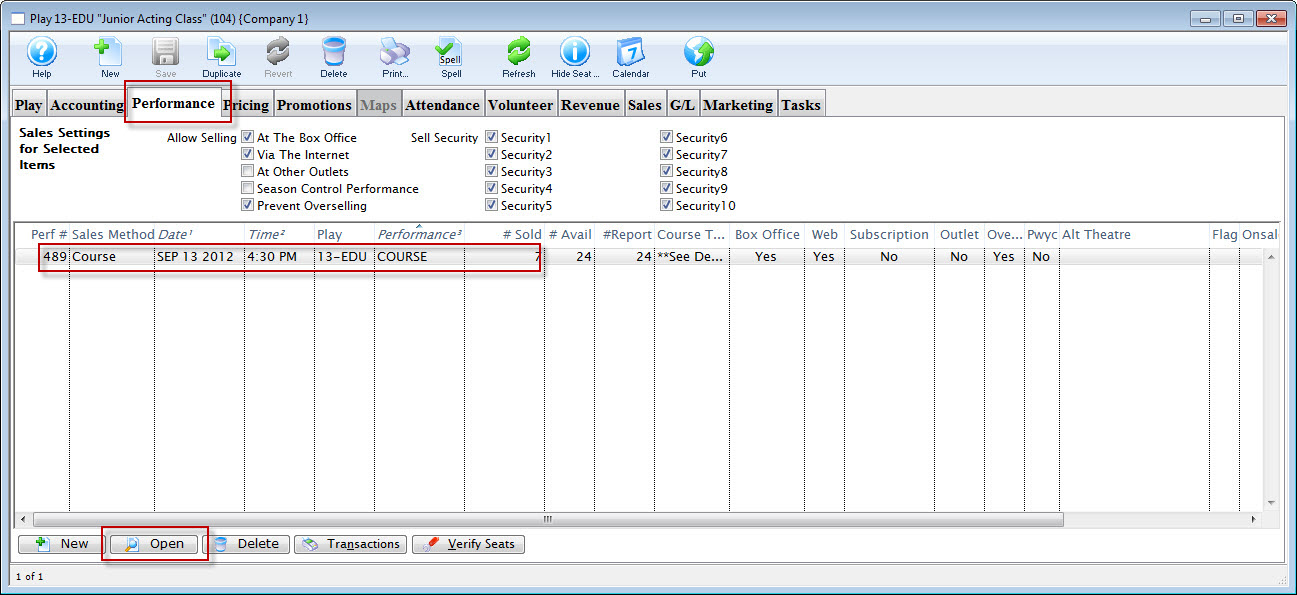
- Select the Course from the performance list and click the Open
 buttom.
The Performance Detal window opens.
- Select the Course Tab in the Detail Window.
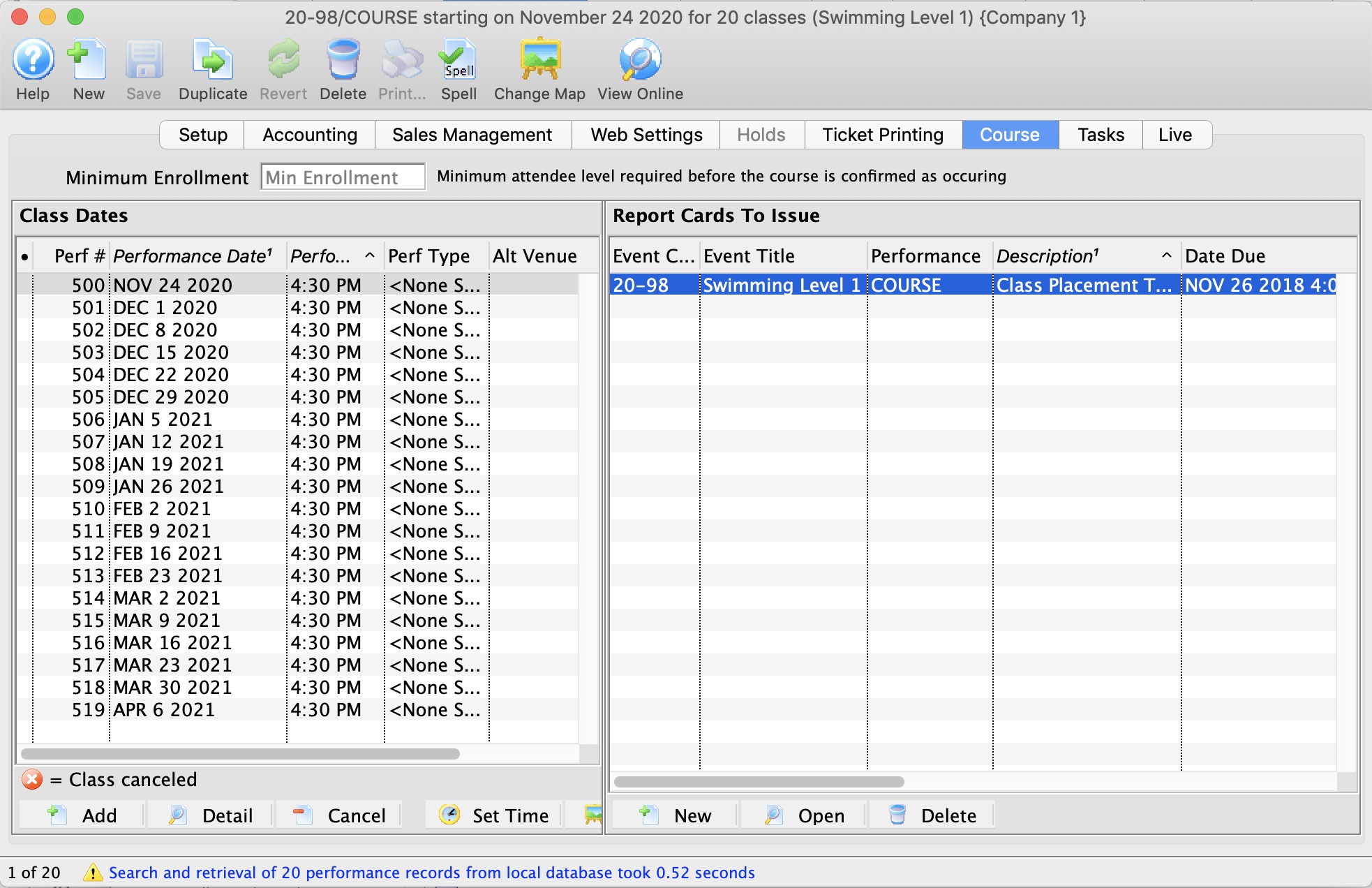
- Under the Report Cards to Issue column on the left, click the New
 button to add a new report card.
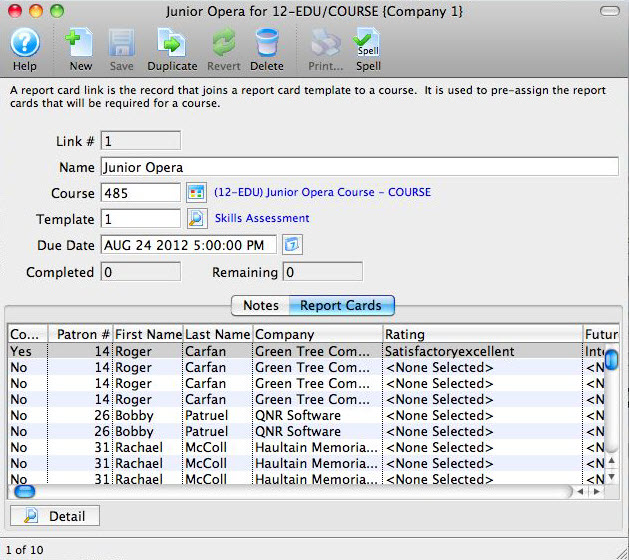
The Report Card Detail window opens.
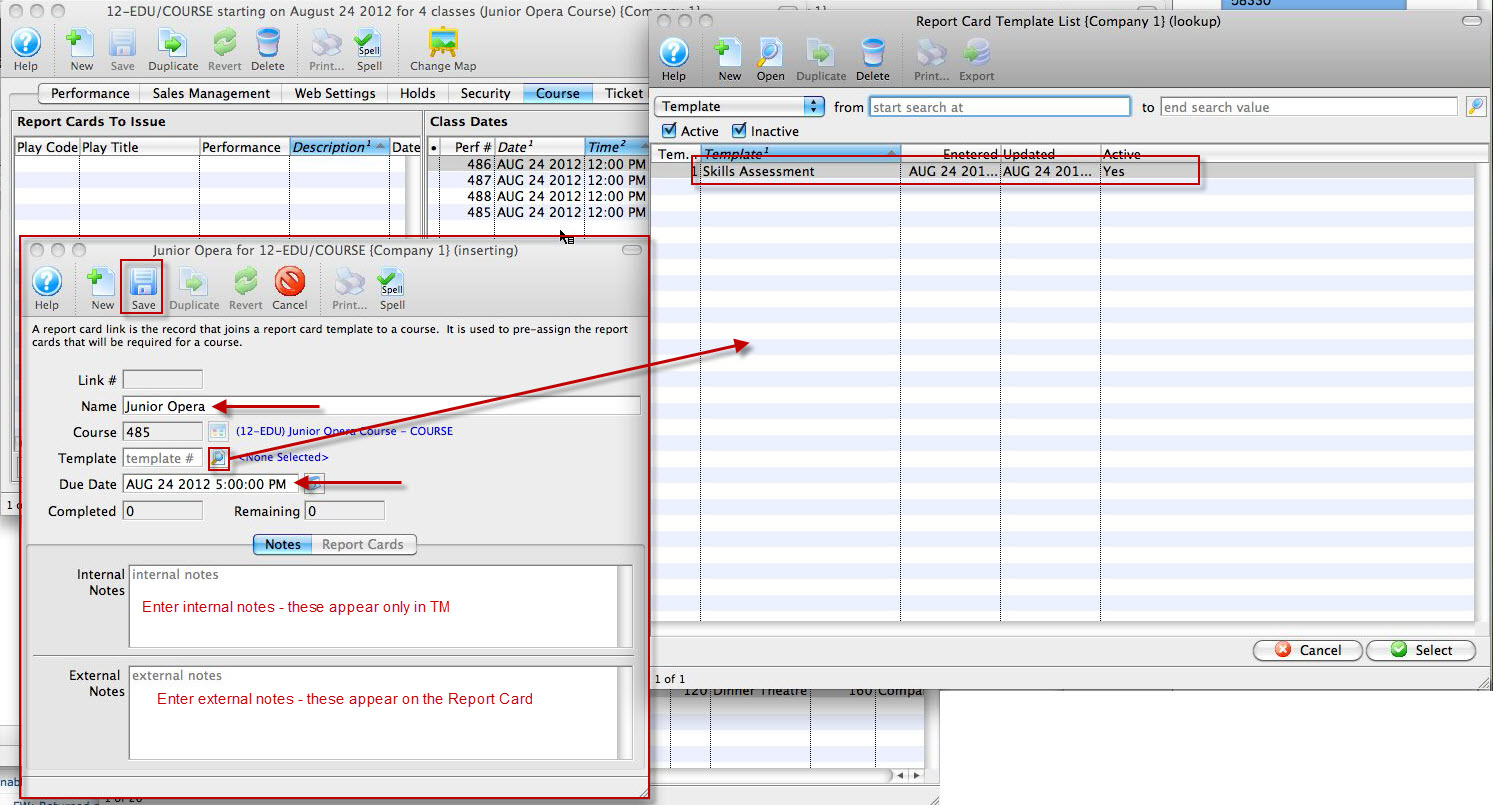
- Enter a name for the report card (e.g the name of the course).
- Using the lookup
 button, choose a Template from the list of report card templates.
 - Enter a due date for the report card.
- Under the Notes tab, Internal Notes are notes that will only appear within Theatre Manager. External Notes will print on every report card.
- Click the Save
 button.
The Report Card tab populates with the name of each student in the Course and enables the report card to be completed.
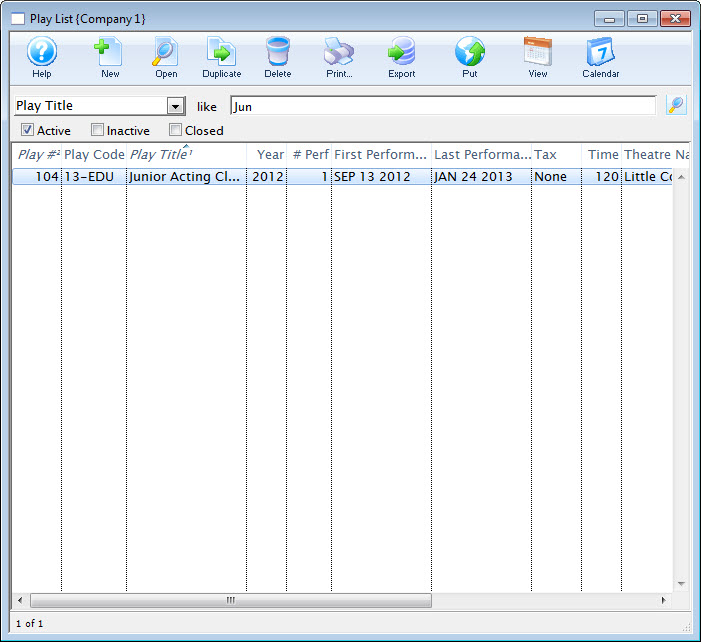
The Play List window opens.
Completing Report Cards
Once you have clicked Save on the Report Card Insert Window, click the Report Cards tab. The list of students registered is available to issue report cards. This list comes from the Attendance tab for the Course.
In the top portion of the window (just above the Notes and Report Cards tabs) are the Completed and Remaining boxes. These show you the number of report cards that have been filled out and those that are left to be done.
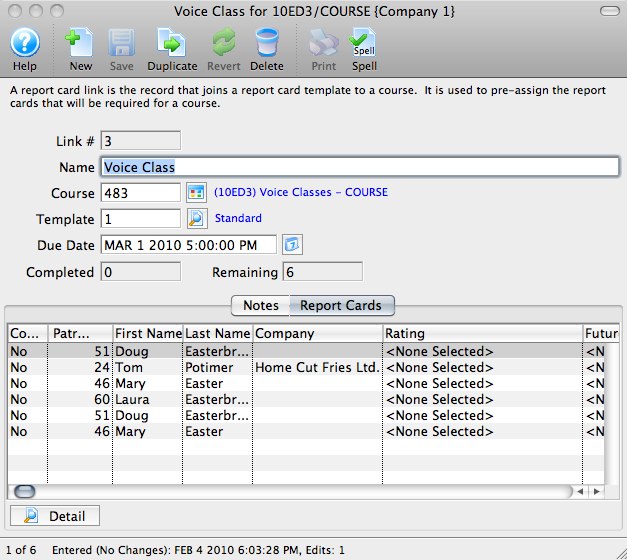
- Double-click on a student's name to open up the student's report card record.
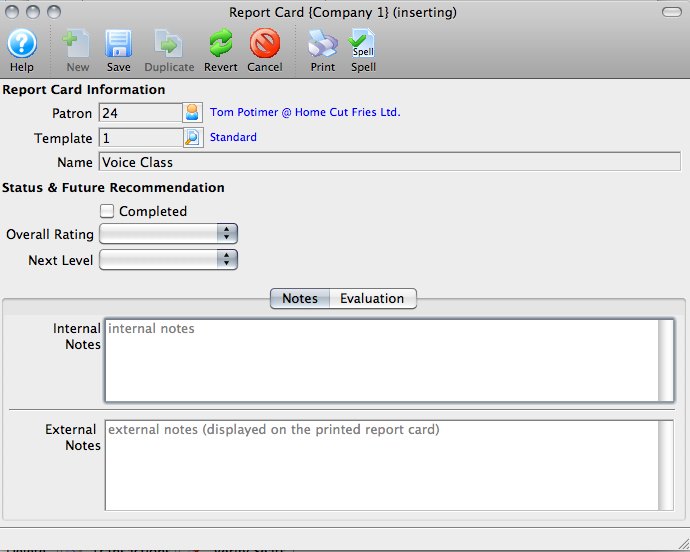
The Report Card Information is already populated.
Under Status & Future Recommendation, there is a checkbox to mark that Report Card completed, and there are two drop-down menus.
- Overall Rating is for the student's final grade or overall rating for the Course. This drop-down is populated from the Course Report Card Ratings from Code Tables.
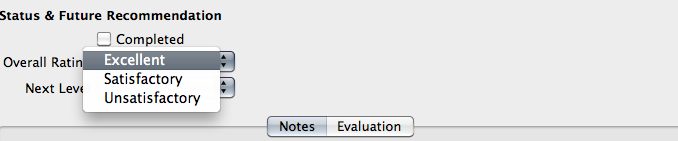
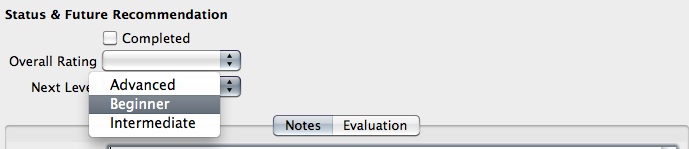
- Next Level will print on the report card as Next Recommended Course and is populated from the Course Level, also from Code Tables.
- The Internal and External Notes fields work in the individual report cards much like the same fields work in the Report Card Template. Internal Notes will only appear inside Theatre Manager, and External Notes will print on the student's report card. The notes in *this* window only apply to the selected student.
- Click the Evaluation tab to move on to assessing the student based on the Categories and individual items in the report card.
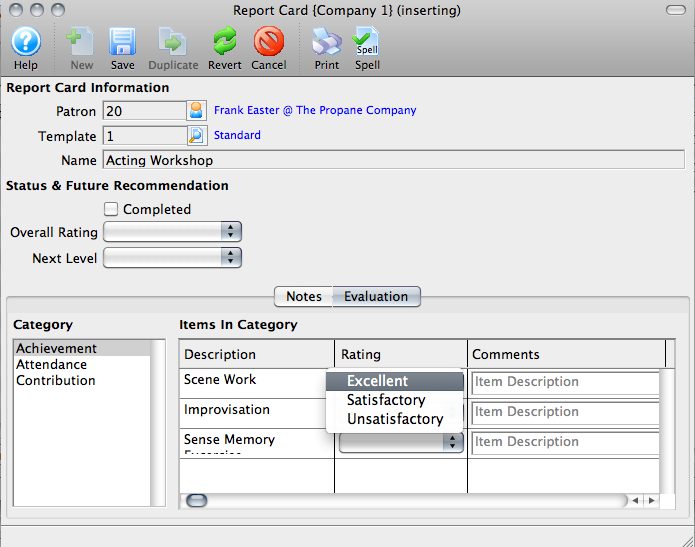
- Highlight a Category on the left to enable the items for each category as set up in the Report Card Template.
- Assign a Rating for each item under each Category. The comments beside each item will print on the report card in line with that item.
- Click the Save button.
Close the report card to move on to the next student in the Report Cards list.
Printing Report Cards
 button in the report card window, or from within Reports accessed via the Theatre Manager toolbar.
- Click the Reports
 button.
The List of Reports window opens.
- Select Course Reports >> Course Report Card.
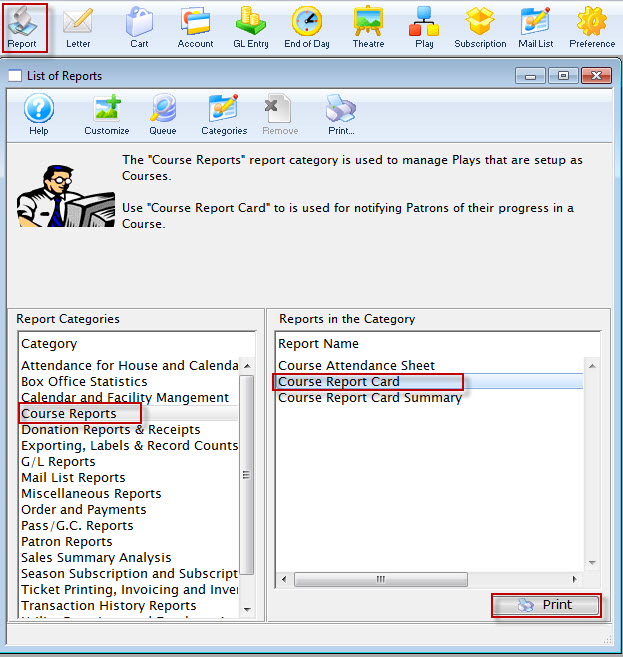
- Click the Print
 button.
The Course Report Card Criteria window opens.
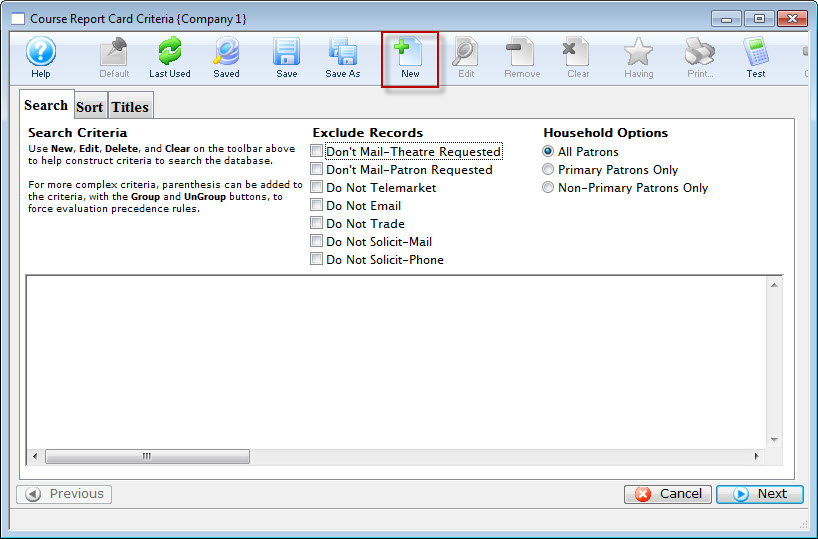
- Click the New
 button, to open the Edit Report Parameters window.
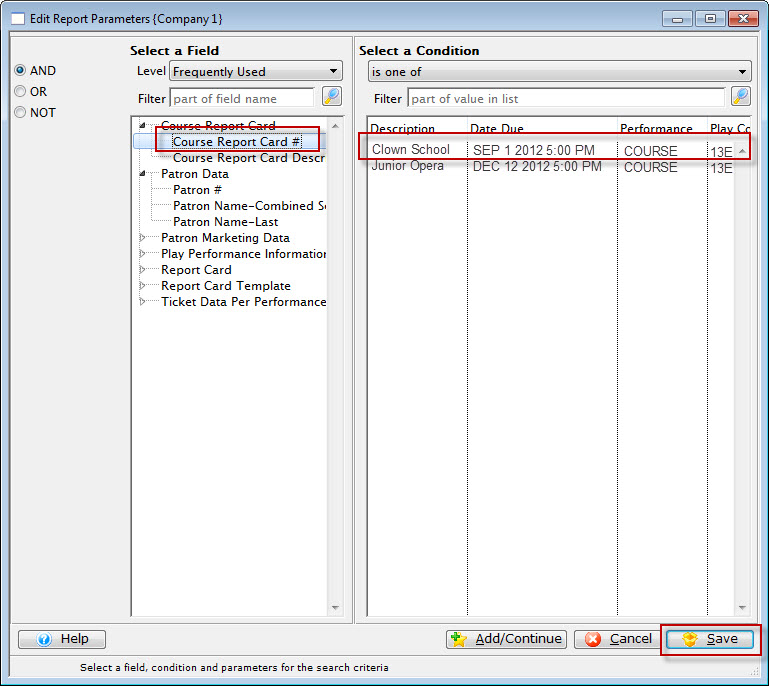
- Set the Criteria to Course Report Card #> is one of > select the Report Card you'd like to print.
- Click the Save
 button.
You are returned to the Course Report Card Criteria window Sort tab.
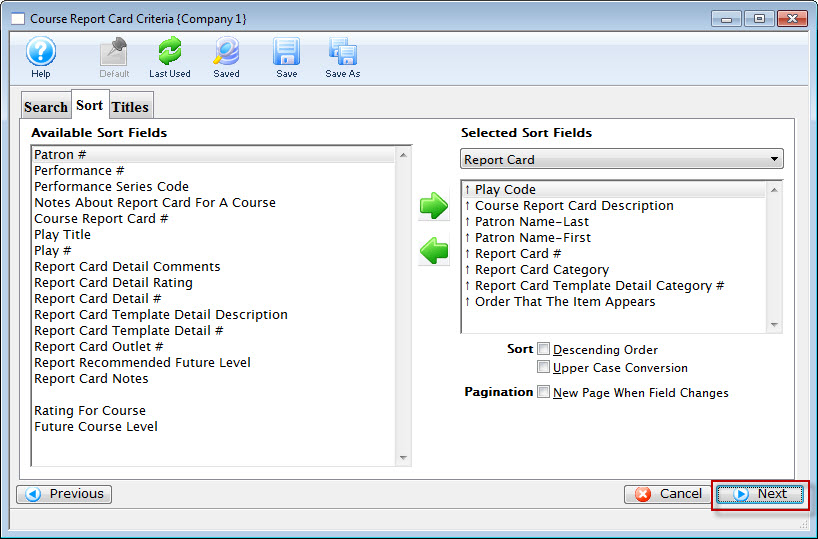
- Click the Next
 button.
The Titles Tab opens.
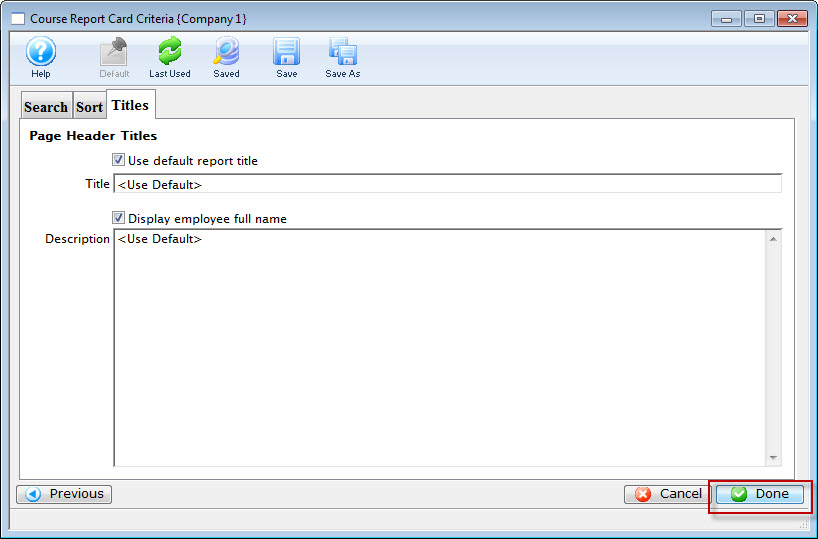
- Click the Done
 to print the report cards.
To print from Reports, you perform the following steps: